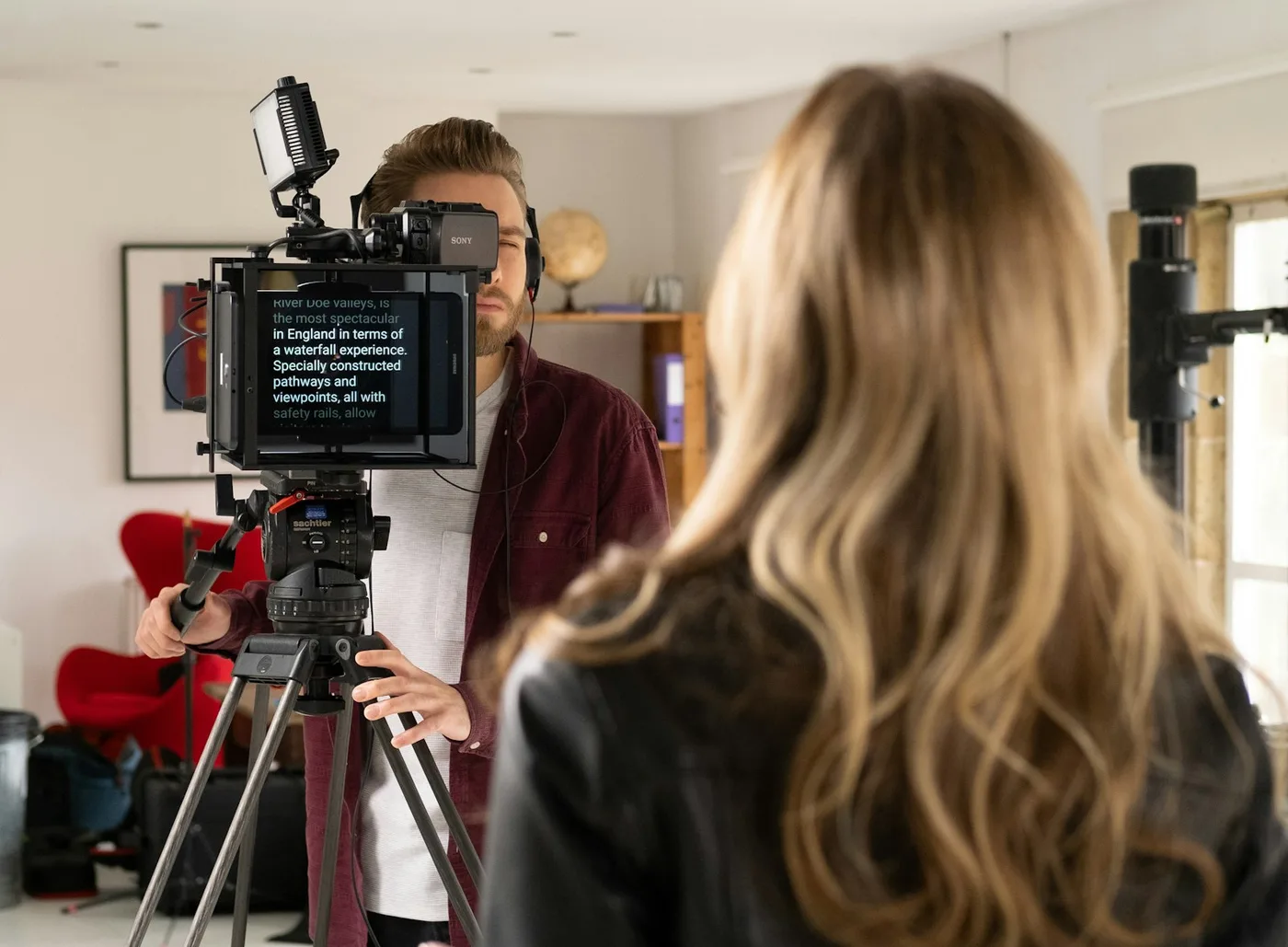
The Short Answer
Put the text right under the camera, keep the lines short so your eyes barely move, and write the script the way you talk. Then mark where you pause, set the scroll to your pace rather than the other way round, and read each phrase as if you're telling it to one person.
Each of those fixes one specific tell. Here's what the tells are, and how to get rid of them.
What Gives a Reader Away
People don't spot a teleprompter from the script. They spot it from three things that happen to your face when you read:
- Your eyes sweep. They track left to right across each line, then snap back to start the next. On camera that looks like someone watching a tennis match in slow motion.
- Your face goes still. Reading takes concentration, so your expression flattens and you blink less. You look like you're working, not talking.
- Everything lands at the same speed. Real speech speeds up, stops, leans on a word, trails off. Read speech moves at the pace of the scroll.
None of these is caused by the teleprompter itself. They come from where the text sits, how it's written and how it moves.
1. Put the Words at the Lens
This matters more than everything else here combined. If the text is anywhere but right next to the camera, you're looking away from your viewer the whole time you read, and they can see it.
It doesn't take much. Viewers still read eye contact when you look up to about 5° below the camera, but only about 1° to either side. On a laptop at arm's length, a script window in the middle of the screen is about 10° below the lens, well outside that zone.
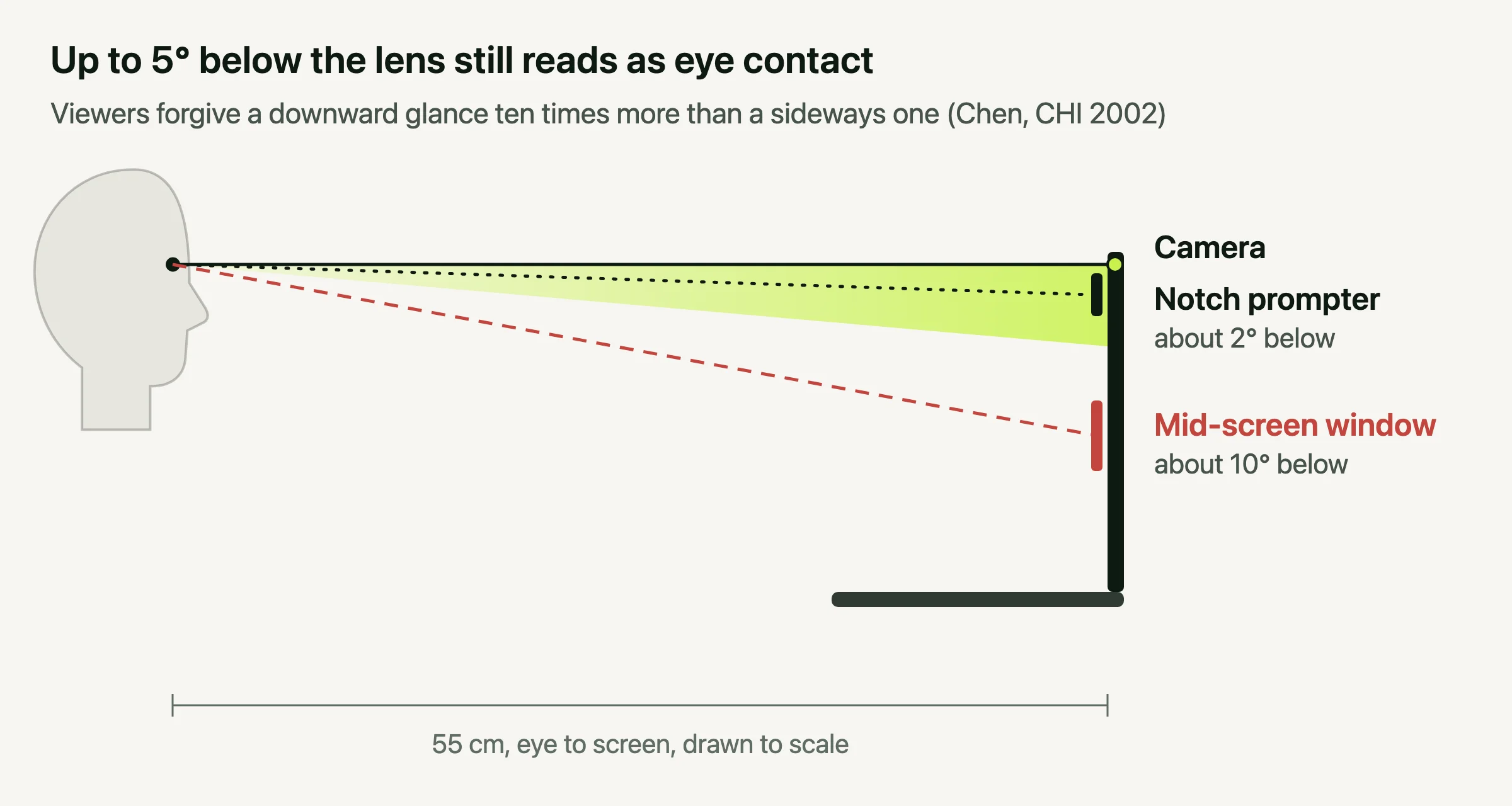
On a MacBook, the camera is in the notch, so that's where the text should go. Avocado shows your script in the notch, about 2° below the lens. With an external webcam, put the floating prompter right under it. There's more on the geometry in how to make eye contact on camera. If you haven't picked an app yet, start with our roundup of teleprompter apps for Mac.
2. Keep the Lines Short
Even with the text at the lens, a wide line makes your eyes travel. A line that runs the full width of the screen means a long sweep and a visible snap back at the end of every line.
Narrow the text into a column of five to eight words, centred under the camera. Your eyes then move a few millimetres instead of across the screen, and the snap back disappears. Make the text big enough that you can take in a whole line at once without squinting. Here's how to set the text size and line width.
3. Write the Way You Talk
A script written to be read sounds read, however good your setup is. Written English uses long sentences, formal words and clauses stacked inside each other. Spoken English doesn't. (There's a full template in how to write a video script.)
- Use contractions. "It's" and "you'll", not "it is" and "you will".
- Keep one idea per sentence. If a sentence needs a breath in the middle, split it.
- Use the words you'd use out loud. "Use", not "utilise". "Help", not "facilitate".
- Read it aloud before you record. Anything you trip over, rewrite. If you'd never say it to a friend, don't say it to a camera.
4. Mark the Pauses and the Emphasis
The flatness people hear in read speech is mostly missing pauses. When you talk, you stop after a point to let it land, you take a breath before a long sentence and you lean on the word that matters. When you read, you keep going.
So write the pauses in. Put a [pause] after a strong line, a [breathe] before a long one, and bold or capitalise the one word per sentence you want to hit. Line breaks help too: start a new line where you'd naturally stop.
In Avocado, Smart Cues can add these markers for you. It reads the script on your Mac with Apple Intelligence and puts pause, breathe and smile cues where they fit. It's part of Avocado Pro and needs an Apple Silicon Mac on macOS 15.1 or later.
5. Make the Scroll Follow You
A scroll that's too fast makes you rush to keep up. One that's too slow leaves you staring at the last line, waiting. Either way the scroll is setting your pace, and it shows.
Set the speed to the pace you naturally speak at, not the pace you think you should. If you don't know it, measure it: most people are off by a lot. In Avocado you set the speed in words per minute and nudge it with ⌘↑ and ⌘↓ mid-take, both free. Voice-activated scrolling goes further and moves the script as you speak, so it pauses when you pause. That's unlimited with Pro, and the free plan includes three Pro sessions a week.
6. Read Ahead, Then Say It
Don't read word by word. Take in a phrase, a few words or a whole short line, then say it to the camera as one thought while your eyes pick up the next one.
It feels odd for the first few minutes. Then it's what lets you look up, react and change your expression, because you're no longer decoding while you speak. Short lines from step 2 make it much easier.
7. Talk to One Person
Picture one specific person on the other side of the lens: a colleague, a client, a friend who'd find this useful. Talk to them, not to "everyone watching".
It changes your face more than any technique. You smile where something's funny, raise your eyebrows at a question and nod when you make a point, because that's what you'd do with a real person. Those small movements are exactly what read speech is missing.
8. Rehearse Twice, Then Record
Read the script out loud once to find the lines that don't work in your mouth, and fix them. Run it a second time with the prompter scrolling to settle the speed. Then record. The first two runs are where the reading gets out of your voice, so the take you keep sounds like talking.
The same setup works for YouTube videos, TikToks and Reels and live streams. Avocado stays out of screen shares and recordings, so the prompter never shows up in what you publish.