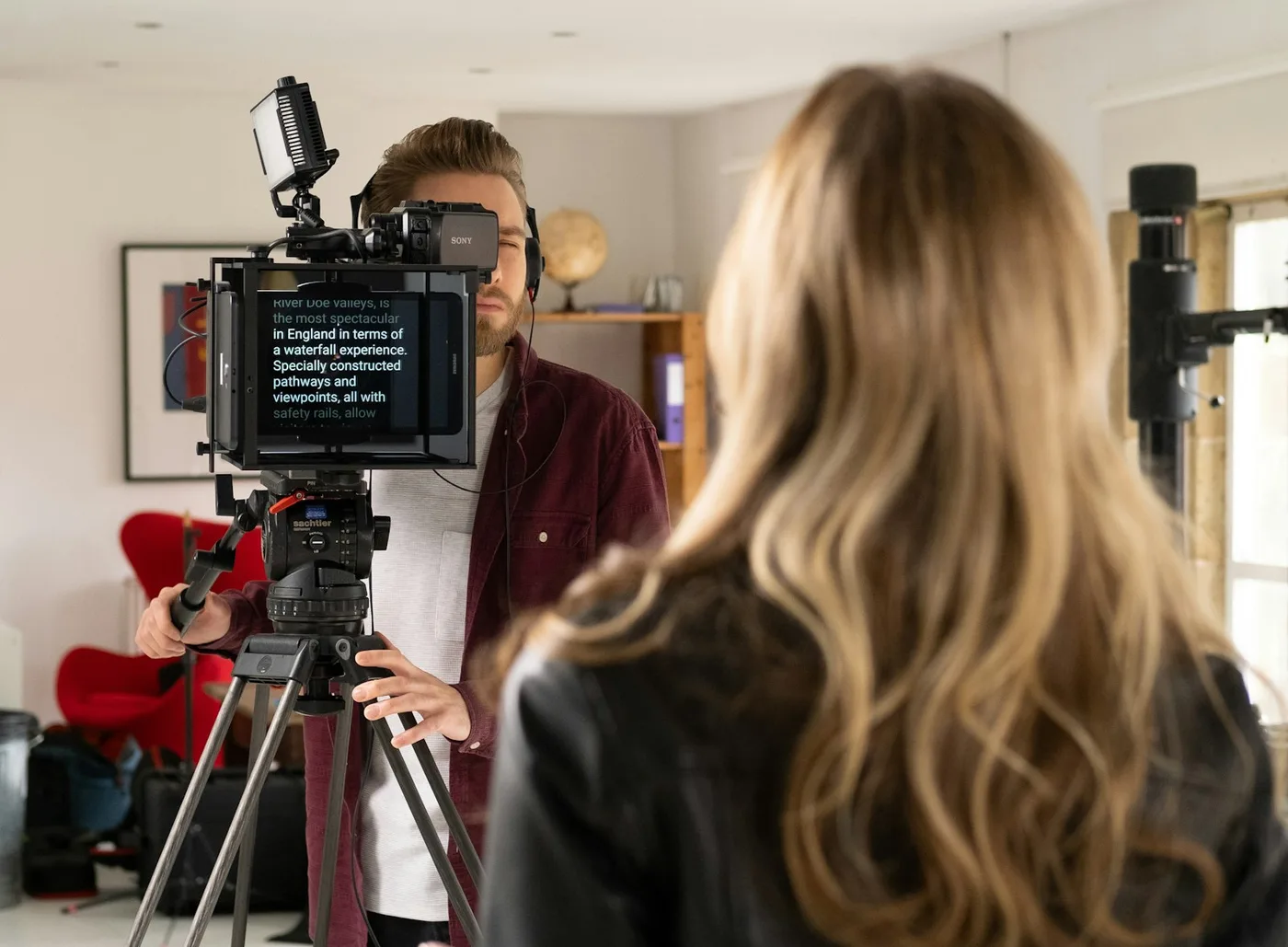
Captions Spelled From Your Script
Feeds play video muted, and a clip that relies on its sound can lose a viewer before they hear a word. Captions fix that. The usual way to get them is a transcription service, which hears Kubernetes as "cuber needs" and your company name as something close to it, and then you correct it by hand.
Avocado has an advantage there: it already knows what you meant to say. After a take, it listens to the recording on your Mac, times every word, and lines what it heard up with your script. Wherever you were on the script, the captions use its spelling, capitals and punctuation, names included. Where you went off script, they show what you actually said. Cue lines and delivery cues like [pause] never appear.
Turn Them On
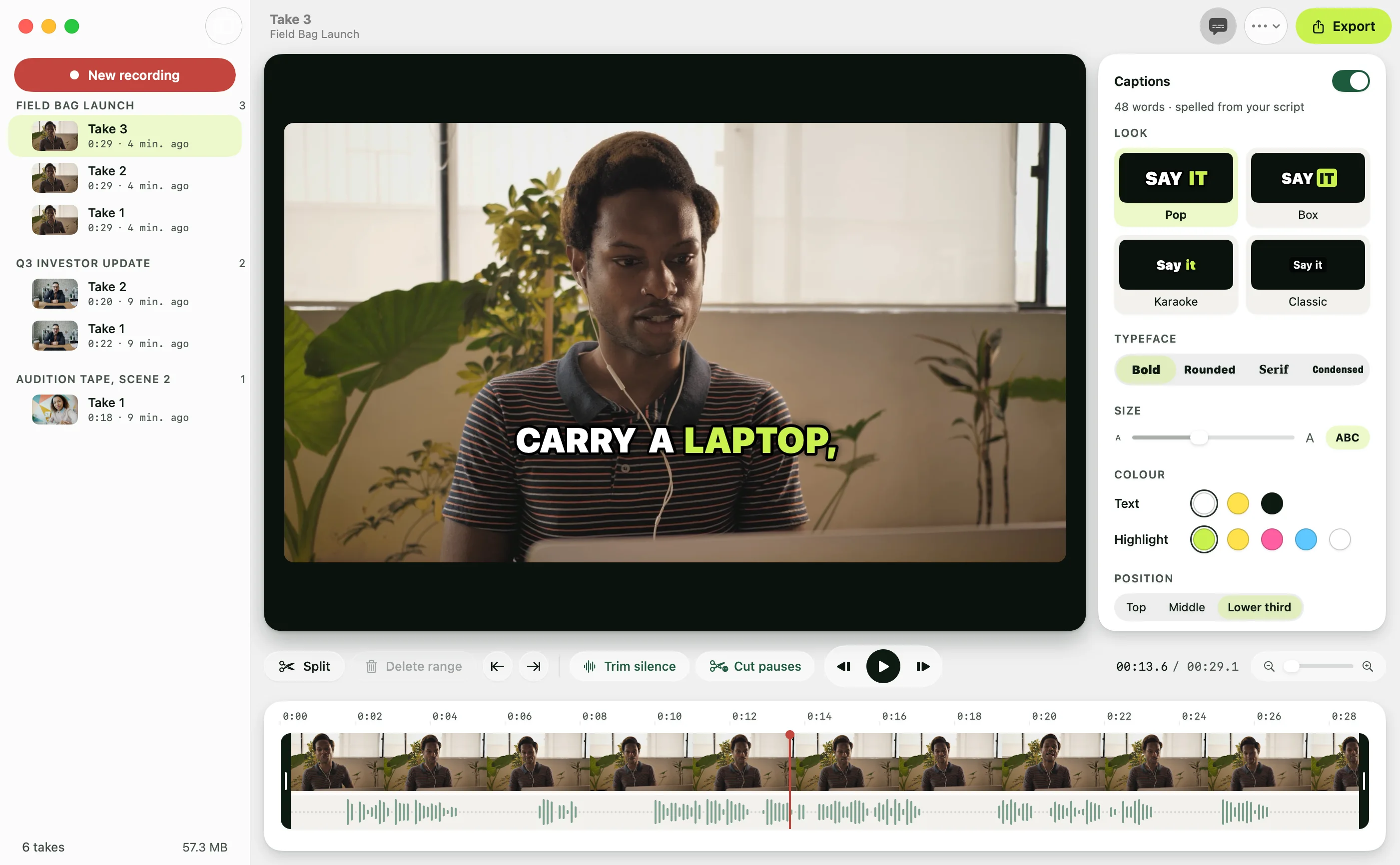
Open a take in Recording Studio and click Captions in the toolbar, or press C. Avocado listens to the take, which takes a second or two for a short one, and the captions appear over the picture. Play it and each word lights up as you say it.
Each take is listened to once, and the result is kept beside it, so it opens instantly the next time. If you fix a typo in the script afterwards, the captions take the new spelling without listening again. And once you turn captions on, new takes start with them on, ready by the time you open the take.
Four Looks
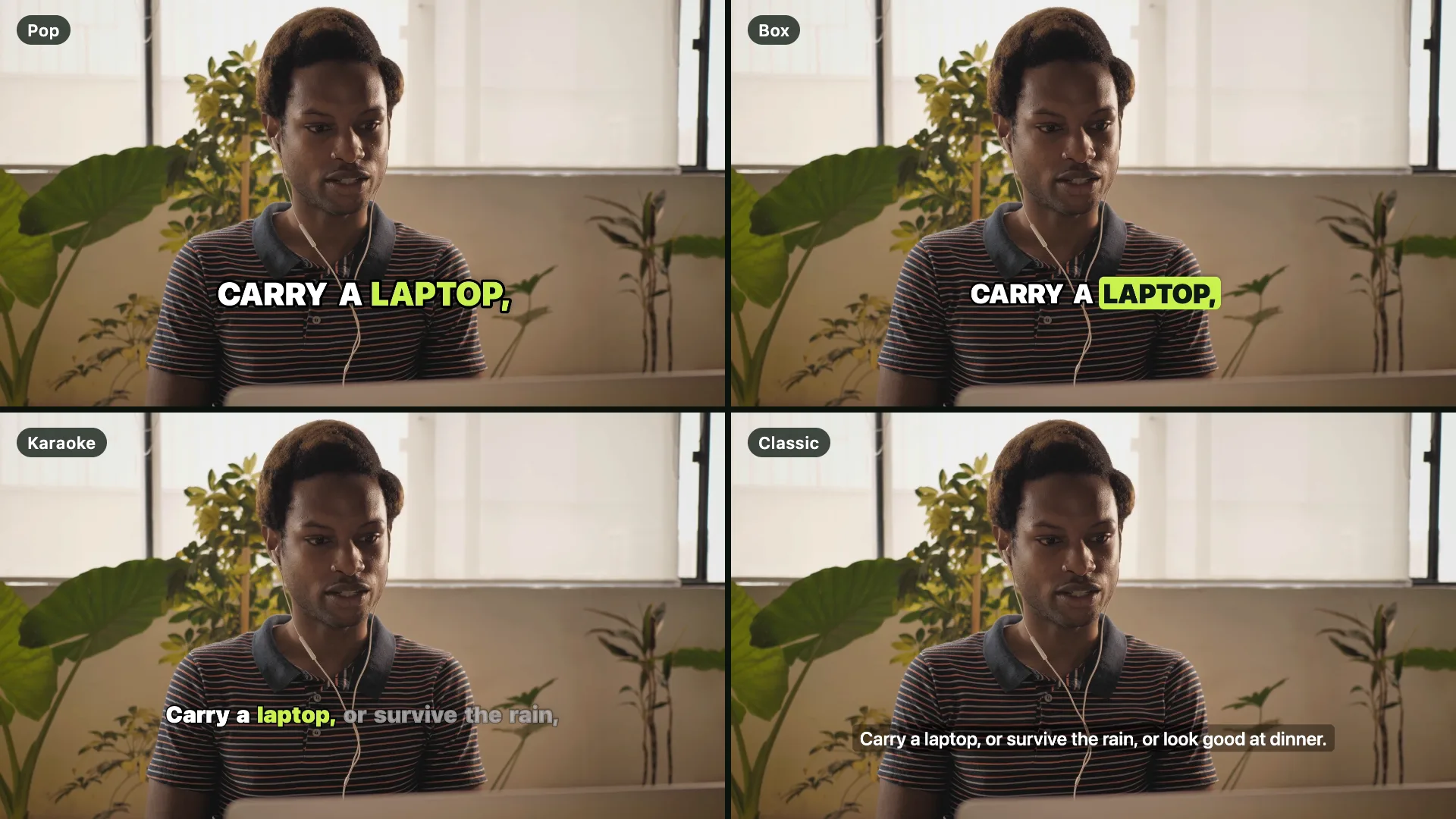
- Pop shows two or three heavy words at a time, with the spoken one in the highlight colour and lifted a touch. It's the look short-form video uses.
- Box puts the spoken word on a coloured box.
- Karaoke shows two lines and lights each word as you reach it, with the rest dimmed until then.
- Classic is plain sentence subtitles on a dark band, for places that want subtitles without the motion.
Then pick a typeface (Bold, Rounded, Serif or Condensed), the size, all capitals or not, the text colour and the highlight colour, and where the captions sit: top, middle or the lower third. You can also drag them up and down the picture itself; they catch at those three places. Every combination on offer stays readable over video, because the list is short on purpose.
What You See Is What You Export
The editor draws the captions with the same code the export uses, so the preview is the export. They follow every edit you make: trim the start, cut a fluffed line or let Cut pauses tighten the take, and the captions move with the words. A caption never runs across a cut.
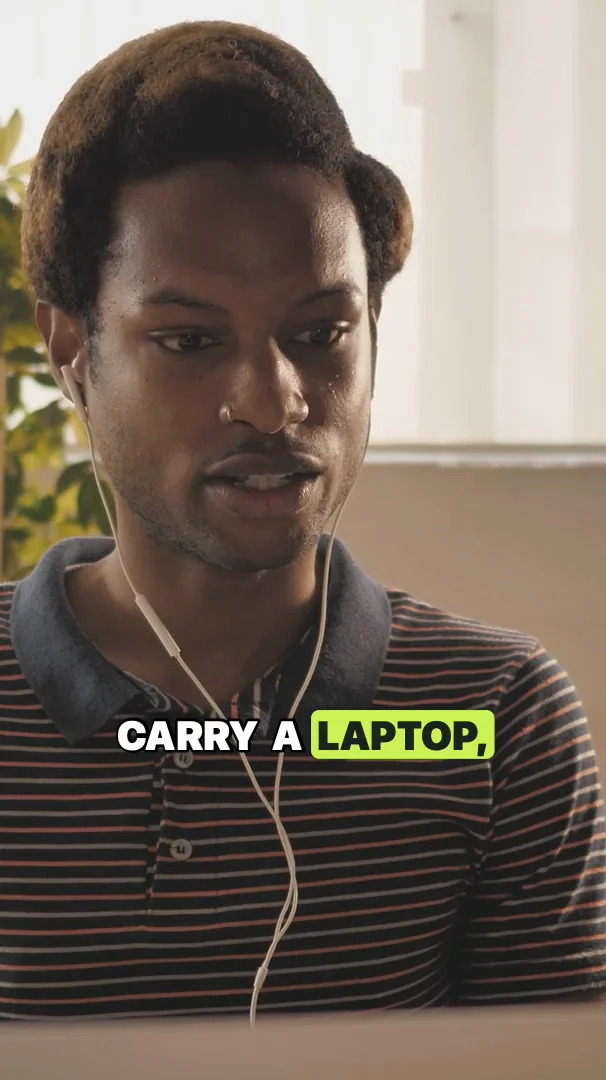
Captions are laid out for the shape you're exporting. Pick Vertical in the Captions panel or the export sheet and the picture shows the 9:16 crop, with the captions sized and wrapped for it. The same take can go out wide for YouTube and vertical for Shorts, each with captions that fit.
Subtitles Too
YouTube and LinkedIn can also take captions as a separate track, which viewers switch on themselves and search engines can read. Save Subtitles (.srt), in the Captions panel or the take's menu, writes the same captions as a SubRip file to upload next to the video.
On Your Mac
The listening happens on your Mac, with Apple's on-device speech recognition. Your take is never uploaded. On macOS 26 and later Avocado uses Apple's newest speech model, which hears a short take in about a second. On macOS 14 and 15 it uses the older recogniser, primed with your script the same way voice scrolling is, so it still catches the words you wrote. Captions work in the languages your Mac can recognise on device, picked from your script, or set in Settings › Voice.
Captions are part of Recording Studio, which comes with Avocado Pro. New to the studio? Start with how Recording Studio works.