Three Apps for One Video
Here is how most people film themselves reading a script on a Mac. The script goes in a prompter. The camera runs in QuickTime, Photo Booth, or OBS. Then the file gets dragged into an editor to cut the false start and the long breath before the second point. Then it all happens again for the next take.
By take four there is a desktop full of Movie Recording 7.mov, and nobody remembers which one had the clean ending.
Recording Studio runs that whole loop in one window. Open it with ⌘3 or the Record button in the editor's toolbar, pick a script, and press Record.
Press Record, Then Read
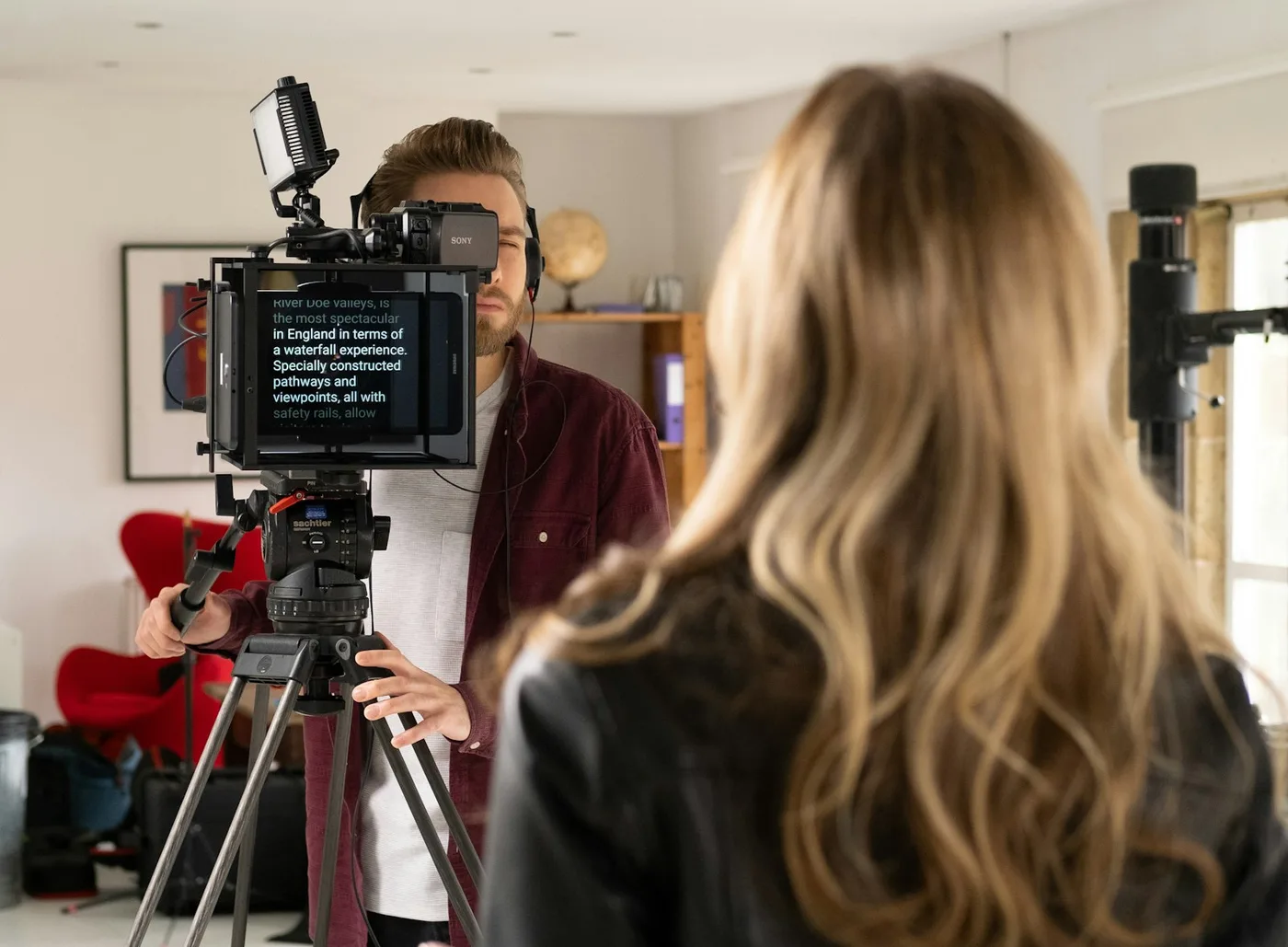
A short countdown runs, the camera starts, and the prompter opens with your script, either in the notch or as a floating window you can park right under an external camera. It is the same prompter you already use, so voice scrolling, Adaptive Speed, and your cues all work the way they always do.
When you reach the end, press ⌘R or close the prompter with Escape. Either one ends the take. Fluffed the first line? ⌥⌘R throws that take away and goes straight back into the countdown, because a stumble in the opening sentence is the most common reason anyone stops.
The First Second
One detail took some measuring to get right. A camera needs a moment after you ask it to record before it writes its first frame, and on some setups that moment runs past a second. A prompter that opened the instant you pressed Record would have you speaking your opening line into a recording that did not exist yet.
So Avocado starts the file during the last second of the countdown and opens the prompter once the recording has really begun. Your first word lands on the take. The bit of quiet the file picks up beforehand is exactly what Trim Silence removes later.
Every Take Filed Under Its Script
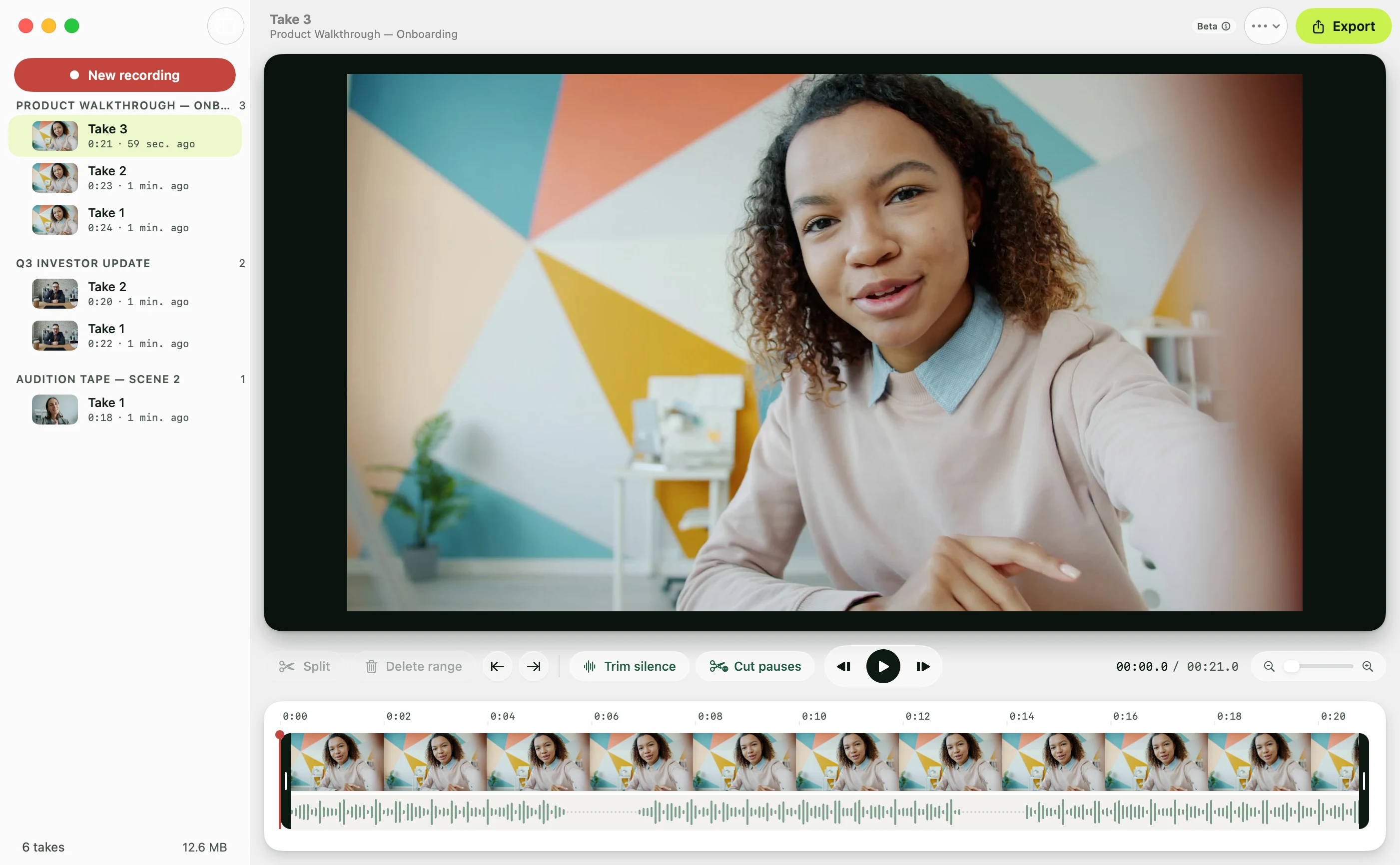
Takes are grouped by script and numbered, with each one's length and when you recorded it, so "the one with the good ending" is a single click away. They are ordinary movie files in Movies › Avocado, named after the script and the take, which means Finder, Final Cut, and your backups see them like anything else.
If Avocado or your Mac goes down in the middle of a take, the recording comes back on the next launch as a recovered take, playable up to the last few seconds before the crash. If a camera or microphone gets unplugged, Avocado keeps what it recorded and tells you why the take stopped.
Cut the Dead Air in Two Clicks
Open a take and it plays above a timeline with a filmstrip and a waveform. Most of the tidying is two buttons:
- Trim silence removes the quiet before your first word and after your last.
- Cut pauses jump-cuts every pause longer than a second, which is usually the moment you looked up to find your place.
For everything else, press S to split at the playhead, select a range and press ⌫ to delete it, or trim the start and end to the playhead with ⌥[ and ⌥]. Space plays and pauses.
The recording on disk stays exactly as the camera wrote it. Avocado keeps a note of the parts you kept beside the take, so undo walks back any step, and Revert to Original gives you the raw take again whenever you want it.
Framed for Where It's Going
Export (⇧⌘E) writes an MP4 in three shapes:
- Original, 16:9 for YouTube and courses.
- Vertical, 9:16 for Shorts, Reels, and TikTok.
- Square, 1:1 for LinkedIn and social feeds.
Each one comes at full quality, 1080p, or 720p. The export sheet shows every crop on your own frame, so you can see how much of you survives the vertical cut before you commit to it.
Planning a vertical video from the start? Switch on the framing guide while you record and the 9:16 or 1:1 crop is drawn over the preview, so you stay inside it. The camera still records the whole frame, so the same take can go out wide as well.
The Setup, Briefly
Everything lives in the studio's recording options, next to the preview that shows what each one does.
- Camera: the built-in camera, any USB webcam, or your iPhone as a Continuity Camera.
- Quality: 720p, 1080p, or 4K. A camera that can't reach the setting records at its best.
- Microphone: any input your Mac can see, with a live level meter.
- Countdown: 3 seconds, 5 seconds, or off.
- Mirror preview: flips what you see so it moves like a mirror. The recording keeps its true orientation.
- Prompter display: with more than one screen, choose which one the prompter opens on.
Free While It's in Beta
Recording Studio is free on every plan while it is in beta, the free plan included. It is a beta in the honest sense: parts of it will change between releases, and what people tell us decides which parts. After your first exports Avocado asks how the studio is working for you, and that answer is the quickest way to shape it.
Voice scrolling is part of Avocado Pro, and on camera it matters more than anywhere, because a fixed-speed scroll either drags you along or leaves you waiting for the next line. The free plan's weekly Pro Passes cover it: redeem one and your next take runs fully Pro.
If you have connected Claude or another assistant to Avocado, it can see your takes too, down to the cut points you made, so "transcribe my last take" or "export take 3 as an MP4" becomes a sentence you type.
From Script to Posted
For forty years, a teleprompter's job ended where the recording began. The script lived in one place, the take in another, and the cut in a third.
Now all three sit in one window. Write the script, press Record, read it, cut the pauses, export. If you want a head start on the reading part, here is how to sound natural on camera.