The Short Answer
Any iPhone XR or later on iOS 16 or newer works as a webcam for a Mac running macOS Ventura or later. Mount the phone on its side with the rear cameras facing you, lock it, and choose it from the camera menu in FaceTime, Zoom, QuickTime or any other app. Apple calls this Continuity Camera.
It's worth doing because the rear camera on an iPhone has a much bigger sensor and better lens than the camera in a laptop lid. It also adds Center Stage, Studio Light and Desk View on Macs that don't have them built in.
What You Need
Set It Up
- On the iPhone, open Settings › General › AirPlay & Continuity (called AirPlay & Handoff on iOS 16 and 17) and check that Continuity Camera is on. It's on by default.
- Mount the phone near the top of your screen, on its side, with the rear cameras facing you. It needs to be locked, still and uncovered.
- Open the app you want to use and choose your iPhone from its camera menu. In QuickTime, that's the small arrow next to the record button. Many apps switch to the iPhone automatically when it's mounted on its side.
- To stop, unlock the phone or tap Disconnect on its screen.
It works wirelessly, but a USB cable makes the connection steadier and keeps the phone charged through a long call. The first time you connect by cable, the iPhone asks whether to trust the Mac. Say yes.
Where to Mount It
The easiest mount is a clip that hooks over the top of a MacBook lid and holds the phone with MagSafe. On a desk, a small tripod or a phone arm behind the laptop works too. Either way, aim for the lens to be level with your eyes.
Then look at where the lens actually is. On its side, an iPhone's camera sits near one end of the phone, about 5 cm from the middle. Put the phone dead centre and the lens ends up off to one side, and you'll look sideways past it for the whole call, which is the direction viewers notice first.
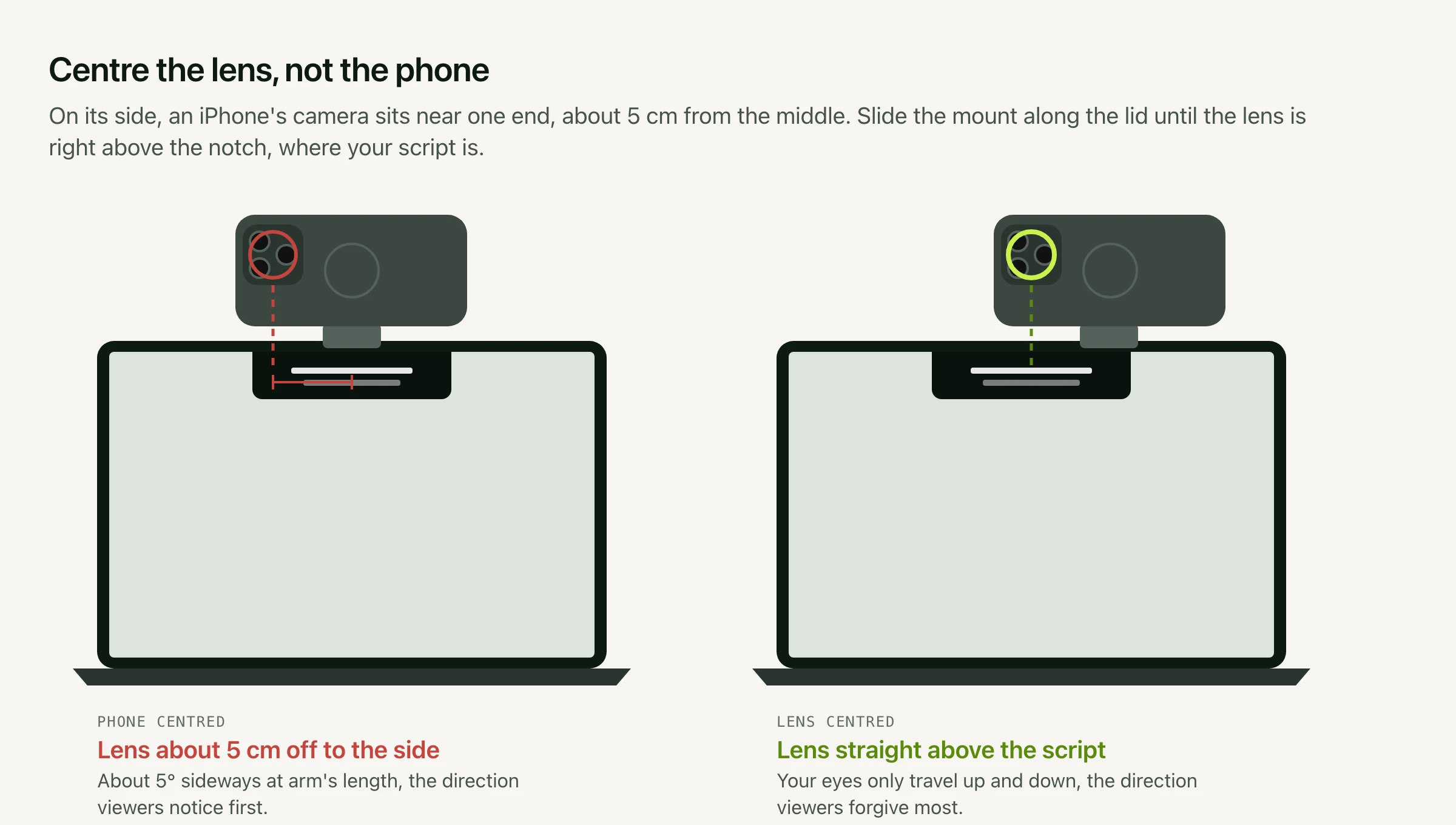
The fix is to slide the mount along the lid until the lens is straight above the middle of the screen. Your eyes then only travel up and down between the lens and the screen, which viewers forgive far more readily. Here's why the direction matters so much.
What It Adds
Using an iPhone unlocks video effects that depend on the phone rather than the Mac. You'll find them in the Video menu in the menu bar while the camera is in use.
| Effect | What it does | iPhone |
|---|---|---|
| Portrait | Blurs the background | XR or later |
| Center Stage | Keeps you centred as you move | 11 or later |
| Desk View | Shows your desk from above, alongside your face | 11 or later* |
| Studio Light | Brightens your face and dims the background | 12 or later |
| Reactions | Fills the frame with balloons, hearts and the like when you make a hand gesture | 12 or later* |
| Background | Replaces the background with a colour or an image | 12 or later* |
* Desk View doesn't work with iPhone SE or iPhone 16e. Reactions needs macOS Sonoma or later. Background needs macOS Sequoia or later, with iOS 18 on the iPhone.
Desk View is the unusual one. It uses the iPhone's ultra wide camera to show the top of your desk at the same time as your face, which is handy for sketching, unboxing or demoing something by hand on a call.
When It Doesn't Show Up
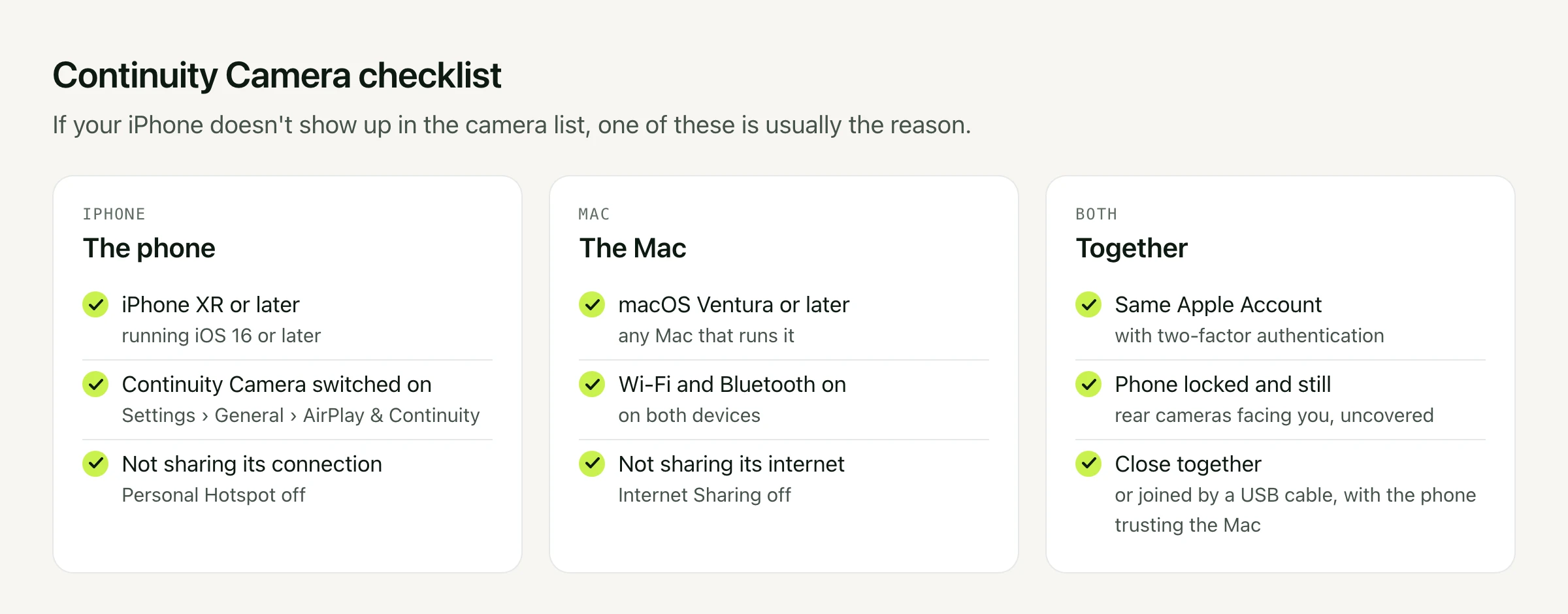
- Check the list above, especially the same Apple Account on both devices and Wi-Fi and Bluetooth turned on.
- Turn off Personal Hotspot on the iPhone and Internet Sharing on the Mac. Continuity Camera won't run while either is sharing a connection.
- Make sure the phone is locked, still, and has its rear cameras facing you. An unlocked phone in your hand won't appear.
- Turn Continuity Camera off and on again in the iPhone's settings.
- Connect a USB cable, and trust the Mac when the phone asks.
- Restart both devices if none of that works.
Reading a Script With an iPhone Camera
With the phone on the lid, the lens sits a few centimetres above the screen instead of in its top edge. Anything you read sits a little further below it than it would with the built-in camera, so keep your script right at the top of the screen, under the lens, and sit back a little. At 75 cm, text 6 cm below the lens is still within the 5° that reads as eye contact.
Avocado puts your script there, in the MacBook notch, and scrolls it at your pace. Its Recording Studio lists your iPhone alongside the built-in camera and any USB webcam, records takes from it while the prompter runs, and cuts the pauses out afterwards. If the iPhone is on a tripod away from the laptop, use the floating prompter instead and park it right under the phone. Recording Studio comes with Avocado Pro.