Use cases · YouTube
Teleprompter for YouTube Videos
Stop memorizing scripts or doing endless retakes. Avocado scrolls your script automatically while you record your next viral YouTube video directly from your Mac.
Why it works for YouTube. Four things you get the moment you open it.
Invisible on YouTube
Left out of every screen share, recording and screenshot, whatever you share.
Right under the camera
Notch Mode puts the words where your eyes should be, so you read toward the lens.
Scrolls with your voice
Speak and it moves. Pause and it waits. No clicker, no second person.
Private and on-device
Speech recognition and the AI features run on your Mac, and it works offline.
In detail
Avocado for YouTube
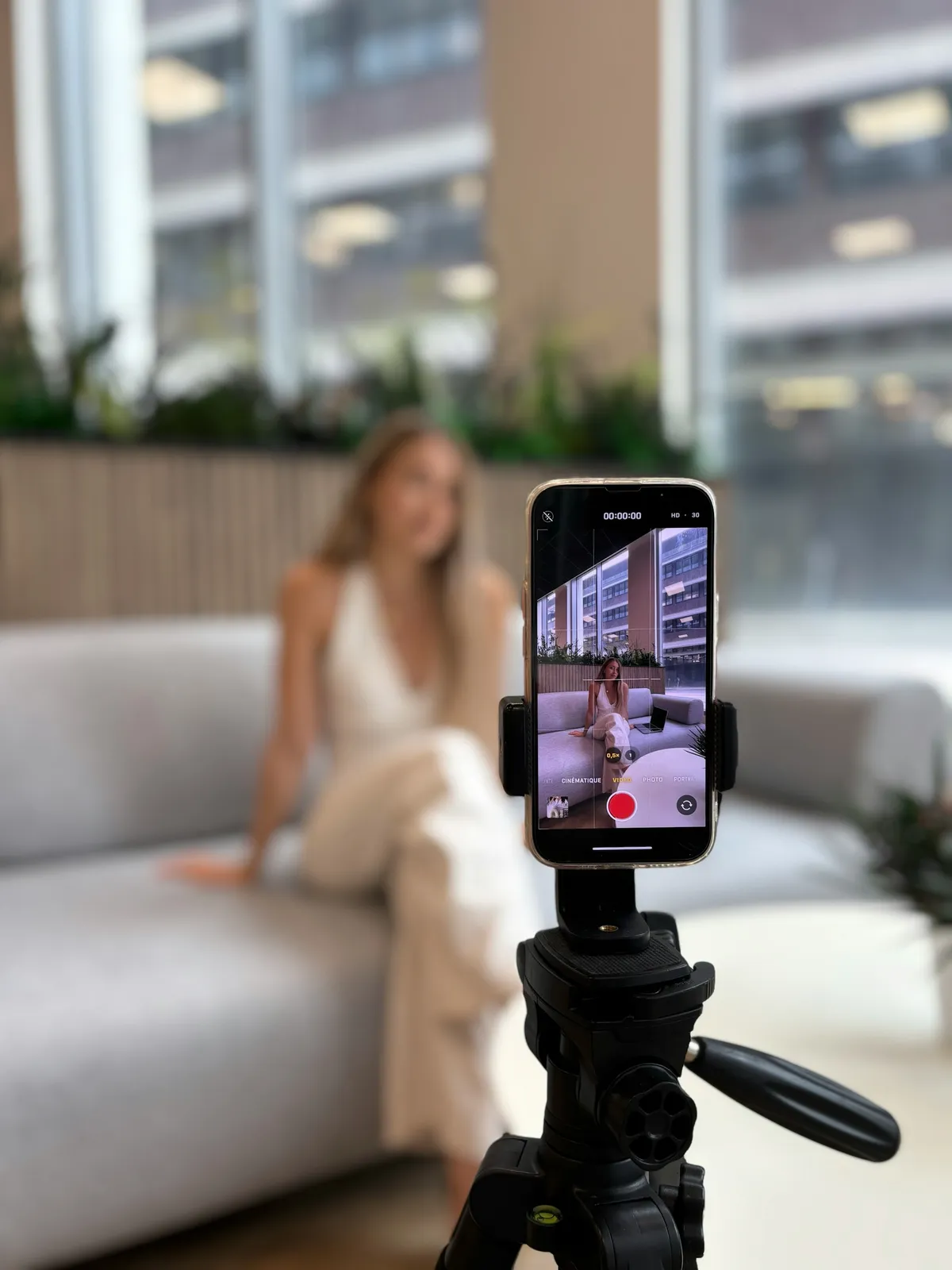
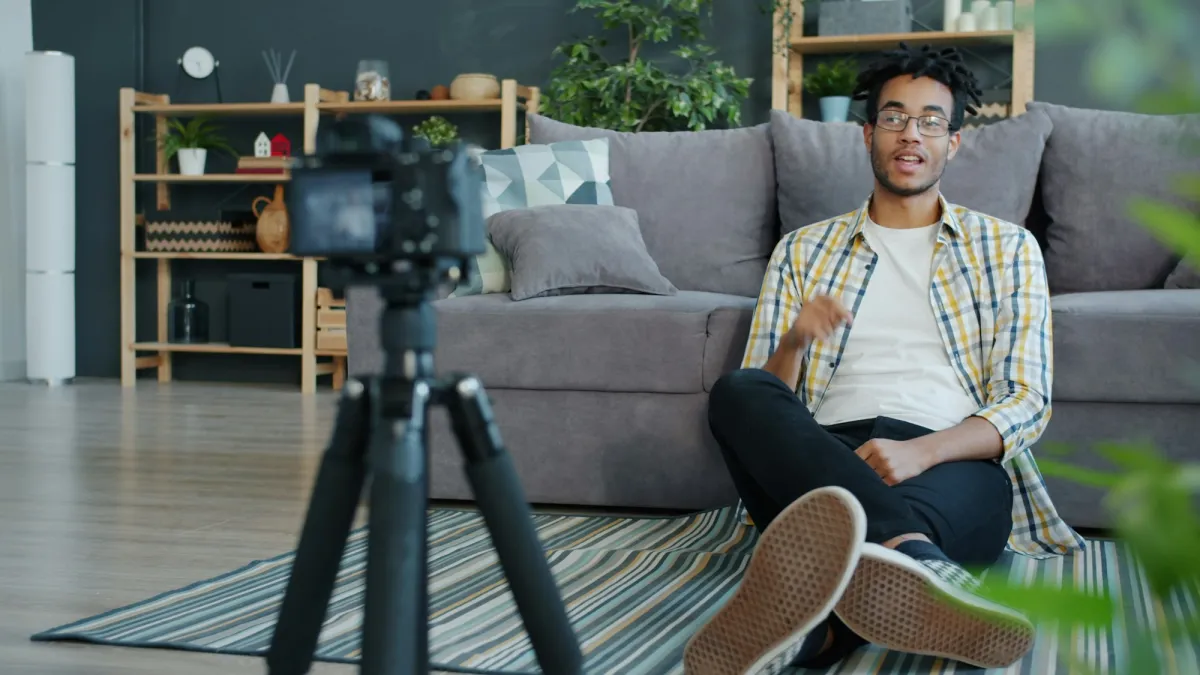
Making YouTube videos requires high energy and flawless delivery. Trying to memorize intense 15-minute essays leads to brutal editing sessions cutting out stutters and 'umms'. Avocado transforms your Mac into a professional teleprompter for YouTube. Utilize the voice-tracking scroll feature so that when you pause for dramatic effect or gesture wildly to make a point, the script pauses with you. Keep your eyes locked dead-center on the camera lens to build an intense, authentic parasocial connection with your subscribers, entirely skipping the massive expense of hardware beam-splitter prompters used by most podcasters. New to scripting? Here's how to write a video script that sounds like you talking, with a template you can fill in.
Questions about Avocado for YouTube.
The problem with traditional teleprompters is that the script is offset to the side or below the lens. Avocado displays your script in the MacBook notch directly above the camera, so your eyes track toward the lens rather than away from it. The result is natural, on-camera eye contact throughout your video.
Yes — Avocado is built for this exact workflow. Open your script in Avocado, start recording in QuickTime, Riverside, or any recording app, and voice-activated scrolling will advance the text as you speak. Avocado is excluded from screen recordings at the OS level, so it won't appear in your footage.
That depends more on your script than the tool, but Avocado helps by keeping your gaze on the camera lens and letting you speak at your natural pace. Voice-activated scrolling removes the mechanical feel of timed scrolling — the script follows you, not the other way around.
Solo creators who record on a MacBook tend to prefer Avocado because it requires no camera rig, no iPad mount, and no second screen. The notch placement means the script is always centered on the lens, and the free tier lets you start without any commitment.

Your next take starts under the lens.
Free for Mac. No account, no card.