The Short Answer
Look at the camera while you're talking, not at the screen. Make that easy by moving whatever you need to look at, the call window or your notes, right under the lens, and by raising the camera to the height of your eyes.
The rest of this guide explains why a glance at the screen reads as looking away, and how to set up a Mac so the place your eyes go anyway is next to the camera.
Why You Look Away Without Meaning To
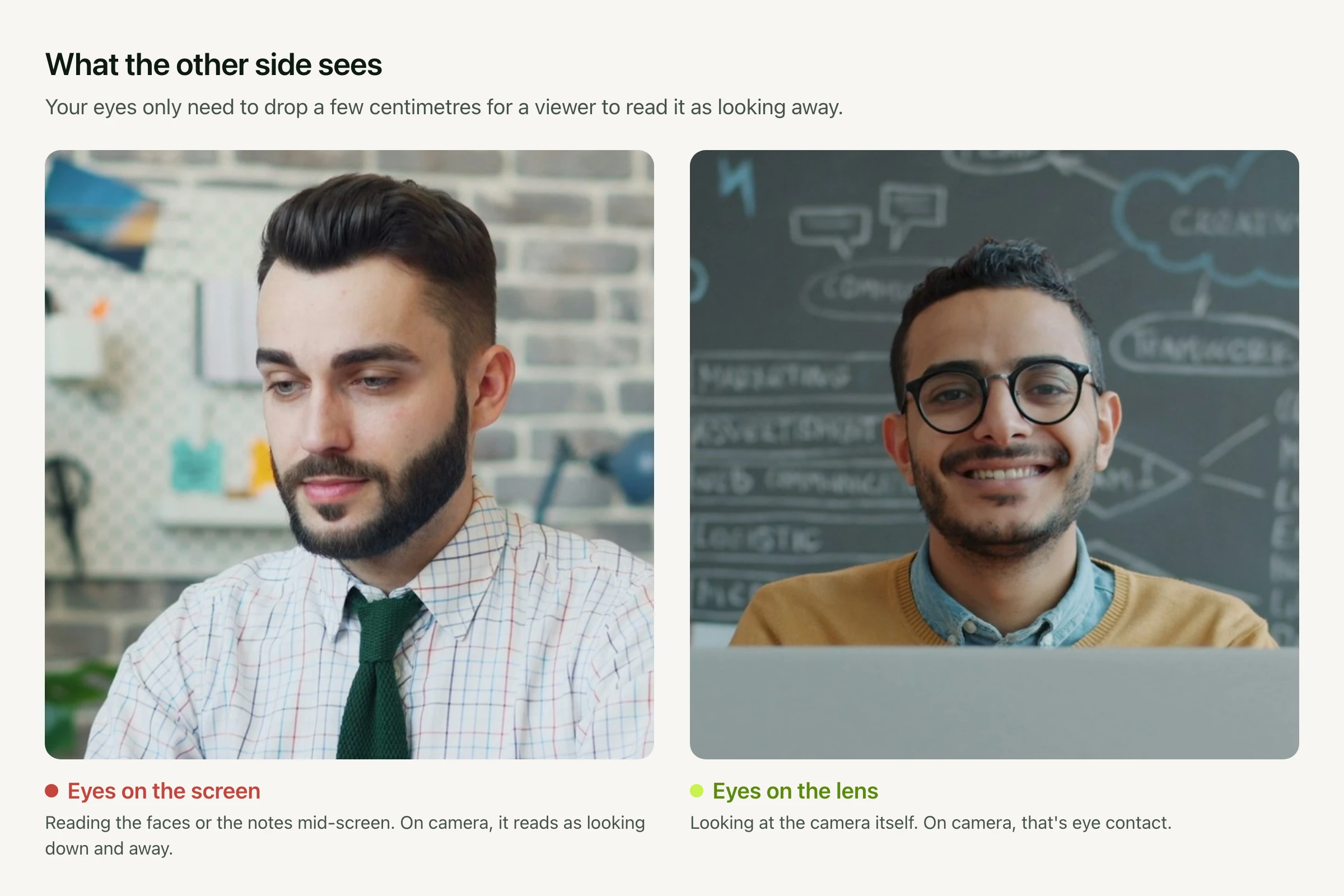
On a video call the other person's face is in the middle of your screen, so that's where your eyes go. The camera is at the top. To them, you're looking somewhere below their chin, even while you're giving them your full attention.
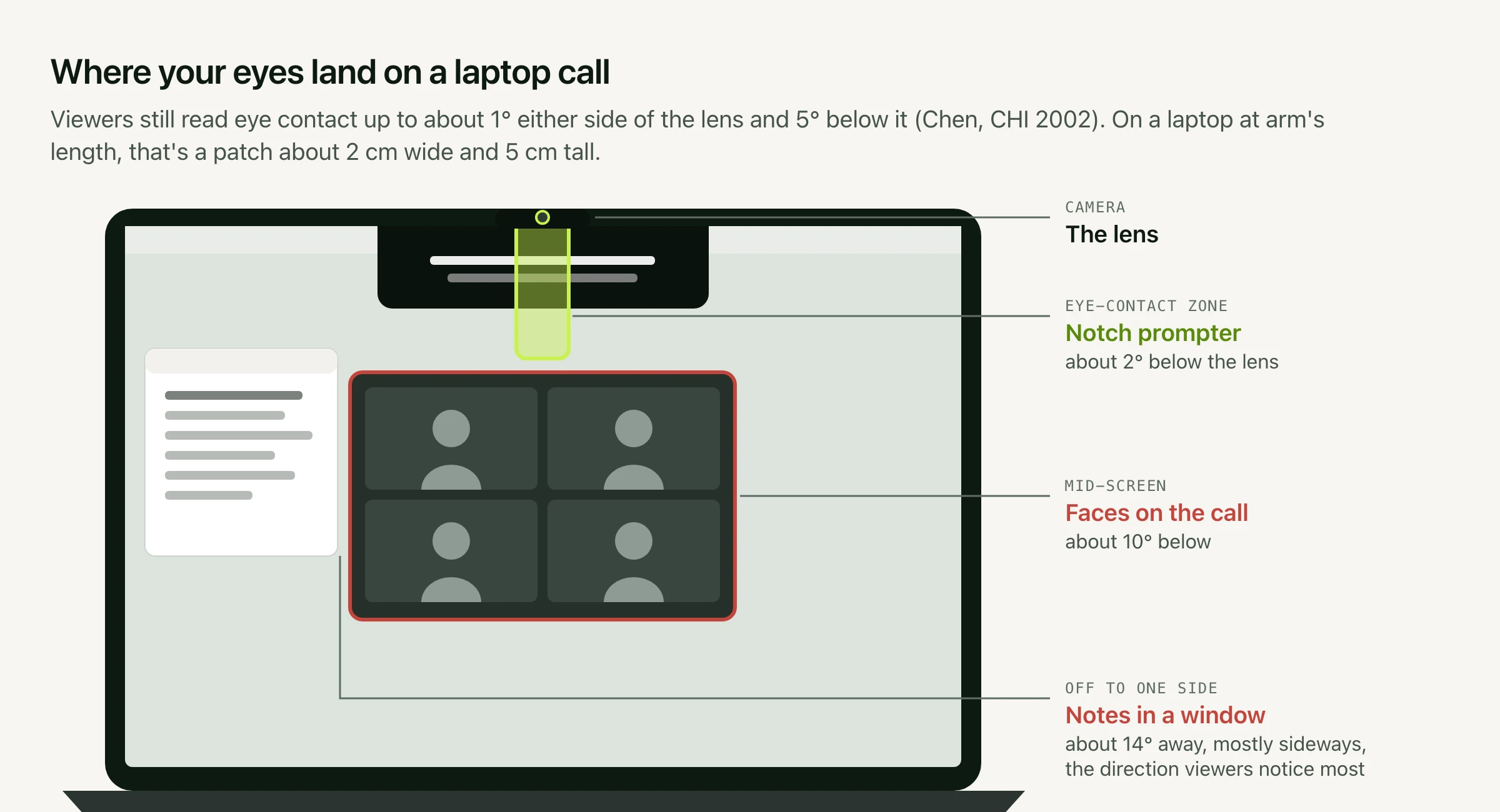
It takes less than you'd think. In a study presented at CHI 2002, Milton Chen at Stanford found that viewers still read eye contact when the speaker looks up to about 5° below the camera, but only about 1° to either side. On a laptop at arm's length, that's a patch about 2 cm wide and 5 cm tall, starting at the lens.
1. Move the Call Up to the Camera
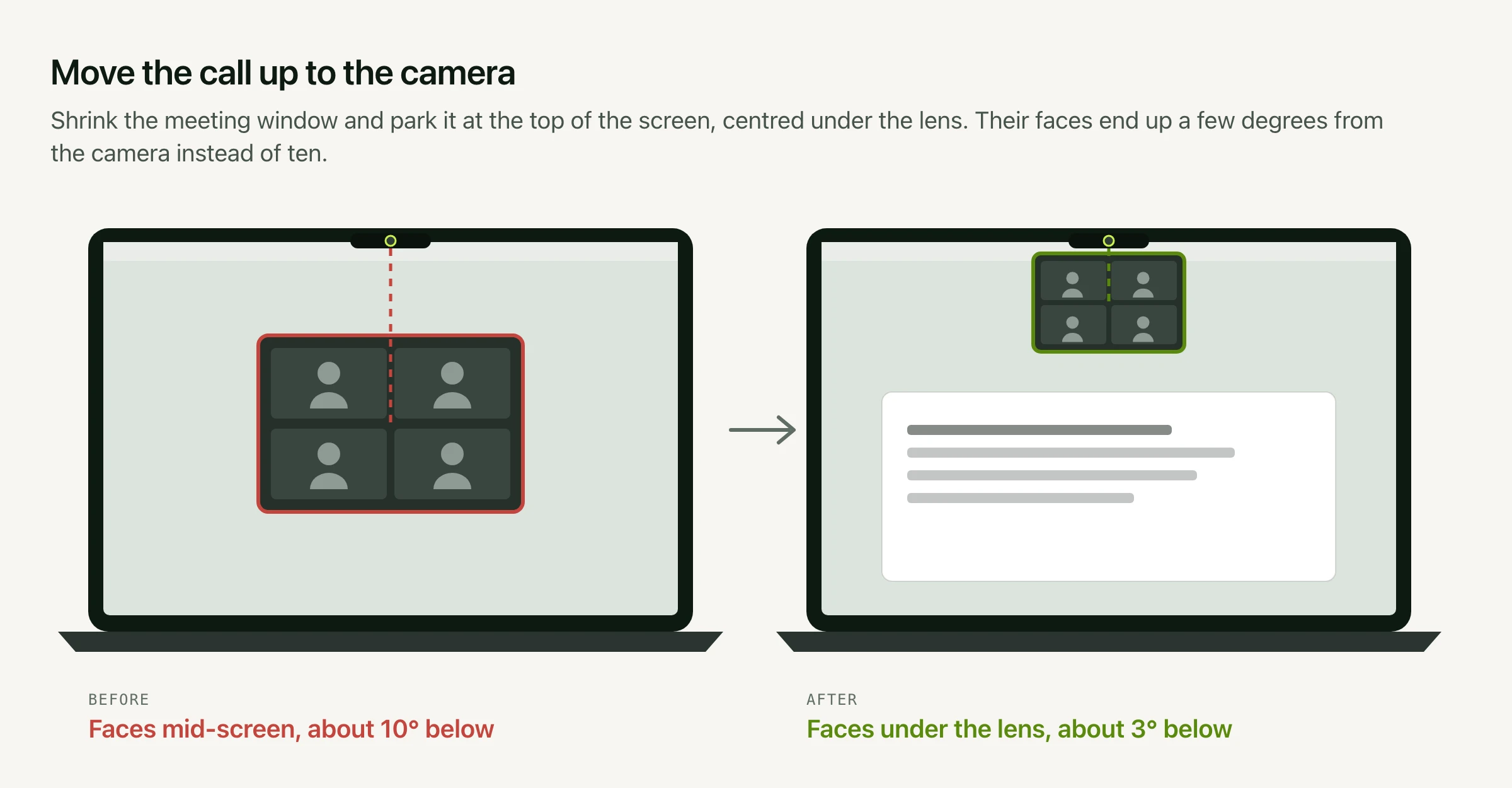
This is the biggest fix, and it costs nothing. Make the meeting window smaller and drag it to the top of the screen, centred under the camera. The faces you're talking to now sit a few degrees from the lens, so looking at them looks like looking at the person.
Two more settings help. Use the view that shows whoever is talking in one large tile, so there's one face to look at rather than a grid. And hide your own video tile if your app allows it. A live view of yourself pulls your eyes away more than anything else on the screen.
2. Raise the Camera to Eye Height
A MacBook flat on a desk puts the camera below your eyes. You look down into it, and the viewer looks up at your chin. Put the laptop on a stand or a stack of books until the camera is level with your eyes, and use an external keyboard and trackpad while it's up there.
Raising the camera also brings it closer to the line your eyes naturally take, which makes the next habit easier. There's more on height and framing in how to look better on your MacBook webcam.
3. Sit a Little Further Back
The angle between the lens and whatever you're looking at shrinks as you move away. A call window that sits 10° below the camera at 55 cm is about 7° below it at 80 cm. Sitting back also flatters your face, because a wide laptop lens stretches whatever is closest to it. Make the text a little bigger to make up for the distance.
4. Look at the Lens When You Talk, and at Faces When You Listen
You don't need to stare at the camera for a whole call. People glance away naturally while they listen or think, and nobody reads that as rude. The moments that count are when you're making a point, asking a question or answering one. Look at the lens for those, then come back to the faces to see how it landed.
A small sticker or a sticky-note arrow next to the camera helps for the first few calls. It reminds you where their eyes are.
5. With an External Display and Webcam
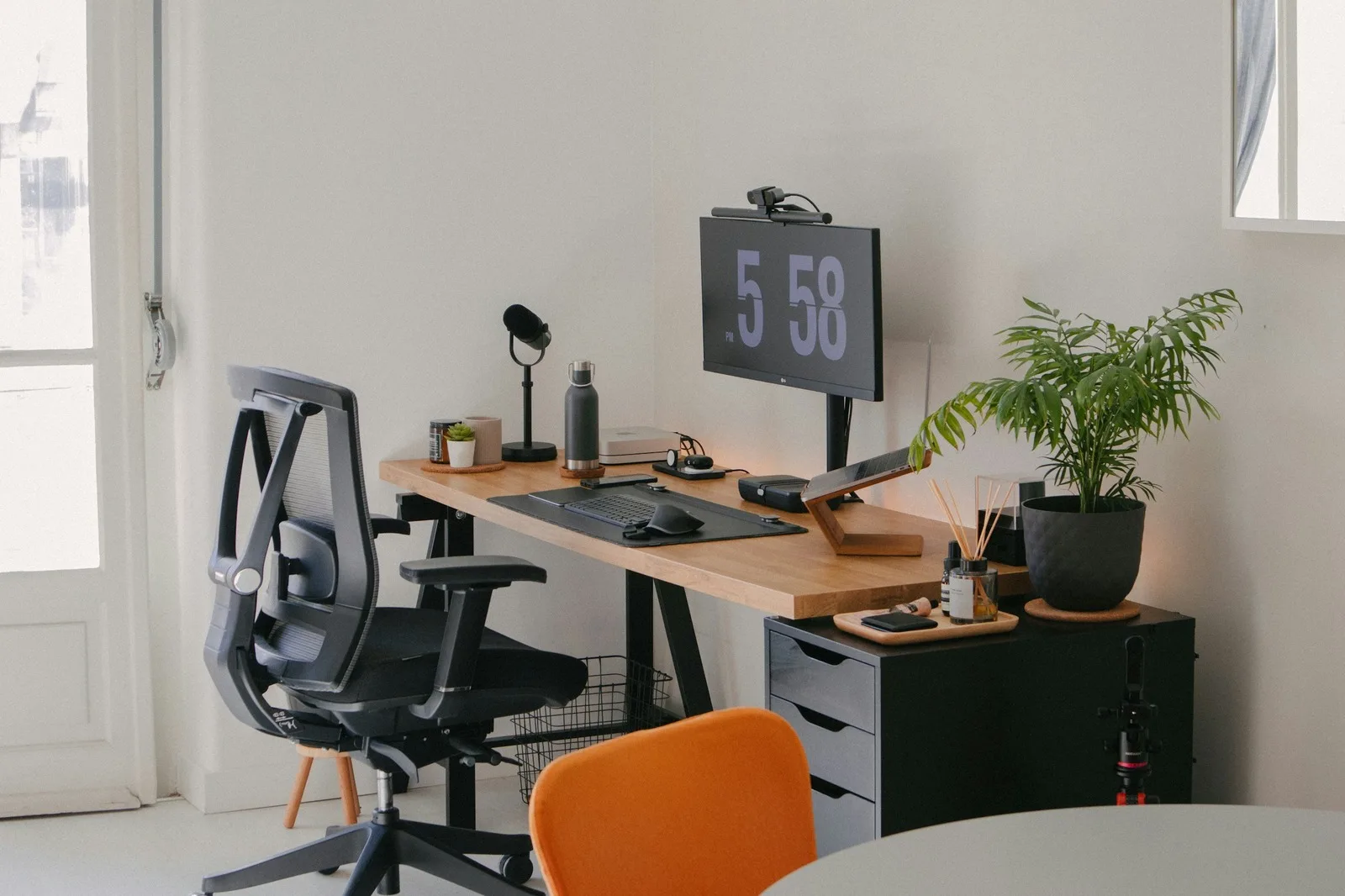
Put the webcam on top of the screen you actually look at, centred. If the camera sits on one display and the call runs on another, you're looking sideways at it for the whole call, and sideways is the direction viewers notice most. Then move the call window up under the webcam, the same as on a laptop.
6. When You're Reading Notes or a Script
Notes are the hardest case, because reading takes longer than a glance. A document in the middle of the screen sits about 10° below the camera, and your eyes sweep across every line. Viewers can tell you're reading within a sentence.
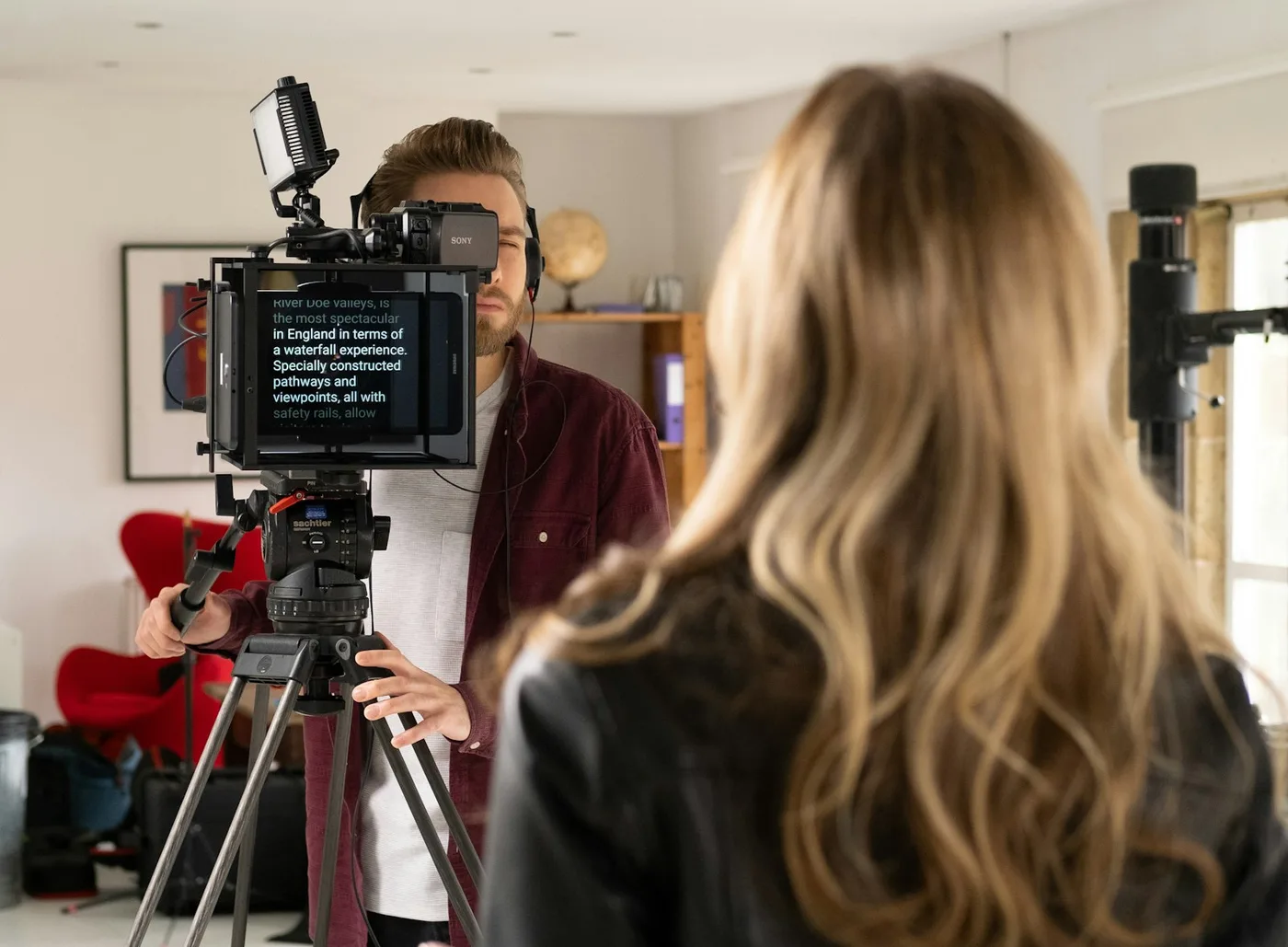
A teleprompter fixes this by putting the words next to the lens. Avocado shows your script in the MacBook notch, so the line you're reading starts about 2° below the camera, inside the zone that still reads as eye contact. It's free, and it doesn't appear in screen shares, screenshots or recordings, so you can use it on a live call. It scrolls at a speed you set, or follows your voice with Avocado Pro. With an external webcam, the floating prompter can sit right under it instead.
To keep your eyes still while you read, keep the lines short and centred. Here's how to set the text size and line width. Presenting slides on a call? Here's how to read your speaker notes at the lens while the slides play.