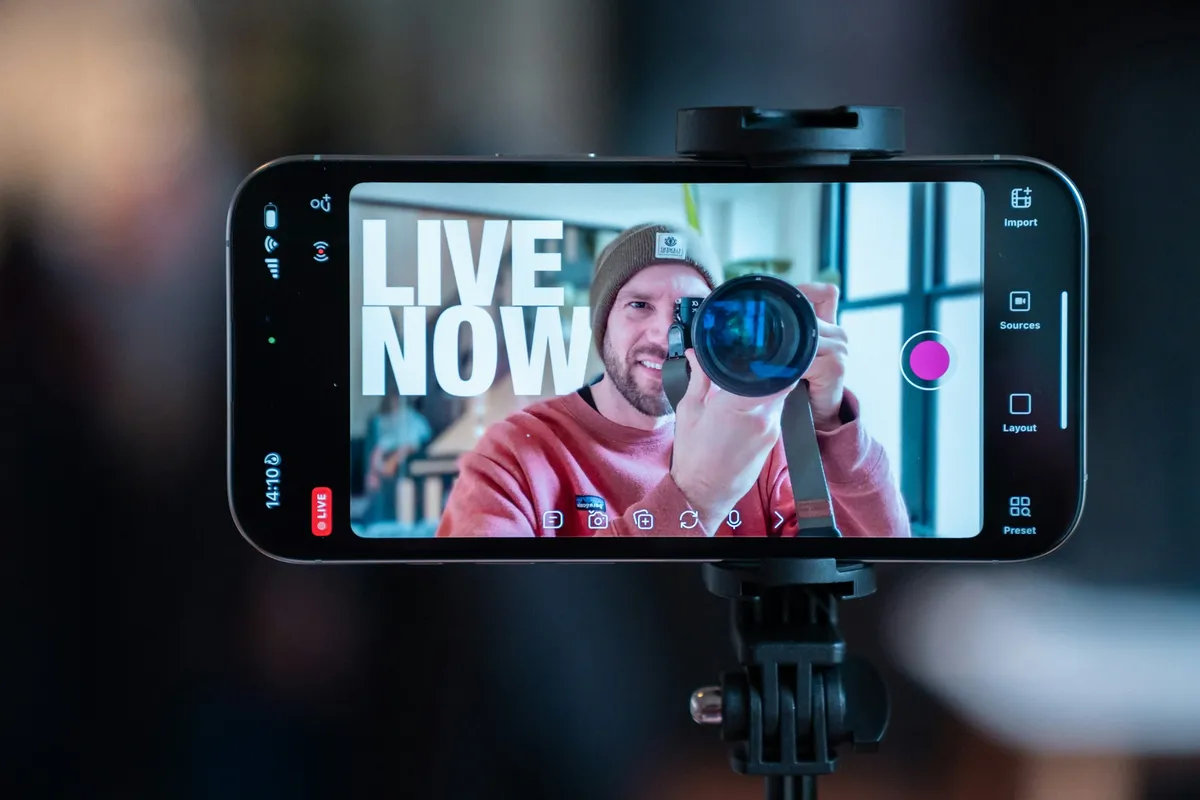
Use cases · Livestreaming
Teleprompter for Livestreaming
Keep your audience engaged. Avocado gives livestreamers the ability to read sponsor reads and show notes without looking away from the camera.
Why it works for Livestreaming. Four things you get the moment you open it.
Invisible on Livestreaming
Left out of every screen share, recording and screenshot, whatever you share.
Right under the camera
Notch Mode puts the words where your eyes should be, so you read toward the lens.
Scrolls with your voice
Speak and it moves. Pause and it waits. No clicker, no second person.
Private and on-device
Speech recognition and the AI features run on your Mac, and it works offline.
In detail
Avocado for Livestreaming
Livestreaming on Twitch and YouTube Live demands more multitasking than almost any other type of video content. You're tracking chat, monitoring stream health, managing scene transitions in OBS, and trying to drive a compelling narrative — all at once. Reading a sponsor script or show notes on top of that usually means breaking eye contact: glancing at a secondary monitor, scrolling a doc, or looking down at printed notes. Avocado eliminates that tradeoff by placing your script directly at the camera lens, leaving your eyes exactly where your audience expects them to be.
The critical question for any streamer is whether OBS will pick up the teleprompter window. With Avocado, it won't. Avocado is excluded from stream capture at the macOS system level using the same WindowServer exclusion APIs that make it invisible on Zoom and Google Meet. Whether you're capturing a game, a browser, or your full desktop in OBS, Avocado does not appear in any capture source. Your viewers see your face and your content — nothing else.
Where this matters most in practice is sponsor reads. Sponsor segments are high-stakes: a misread of a promo code, a stumbled URL, or an awkward pause can mean a rejected deliverable or a lost partnership renewal. With Avocado's voice-activated scrolling, the script advances at exactly your speaking pace — you don't set a fixed speed and race to keep up. Speak naturally and the text follows. Slow down for emphasis and it waits. For recorded YouTube content it works the same way, and because Avocado is excluded from screen recording too, your local recording file stays clean.
Beyond sponsor reads, show notes, segment outlines, and guest interview questions all benefit from being in Avocado during a live stream. The focus guide dims already-read lines so you always know your position in the script without scanning. And because Avocado is a native macOS app that sits in your notch rather than a browser tab, it does not compete with your capture setup or add latency to your stream.
Questions about Avocado for Livestreaming.
No. Avocado is excluded from OBS and browser-based stream capture at the macOS system level. Twitch and YouTube Live viewers see only what OBS sends — your game, webcam feed, or screen content — with no trace of Avocado in the stream output.
No. Whether you're using a game capture, window capture, display capture, or any other OBS source, Avocado's window is excluded from all of them. This is handled by native macOS WindowServer APIs, not a workaround — it works reliably regardless of your OBS version or capture settings.
For Mac users, Avocado is the best option because it sits in the MacBook notch directly above the webcam, keeps your eyes on the lens, and is completely invisible to OBS and stream capture. Unlike web-based teleprompters that run in a browser tab, Avocado is a native app that doesn't interfere with your capture setup.
The key is voice-activated scrolling. Instead of setting a fixed scroll speed and rushing to keep up, Avocado listens to your voice and advances the text at your natural pace. You can pause, improvise, and go back — the script moves with you. Reading familiar-looking text at your own pace produces natural delivery rather than the mechanical cadence of chasing a fixed-speed teleprompter.
More ways people use it.
All use cases →


Your next take starts under the lens.
Free for Mac. No account, no card.