The Short Answer
- Keynote: add live video to your slides, choose Play › Record Slideshow, then File › Export To › Movie.
- PowerPoint: click Record, turn on your camera, present, then export the recording as an MP4.
- Anything else: record the screen with QuickTime while a camera preview floats in the corner.
Whichever you pick, your speaker notes end up somewhere on the screen while you record, and that's what makes most recorded presentations look like someone reading. The last part of this guide covers how to read them at the lens.
First, Pick the Shape
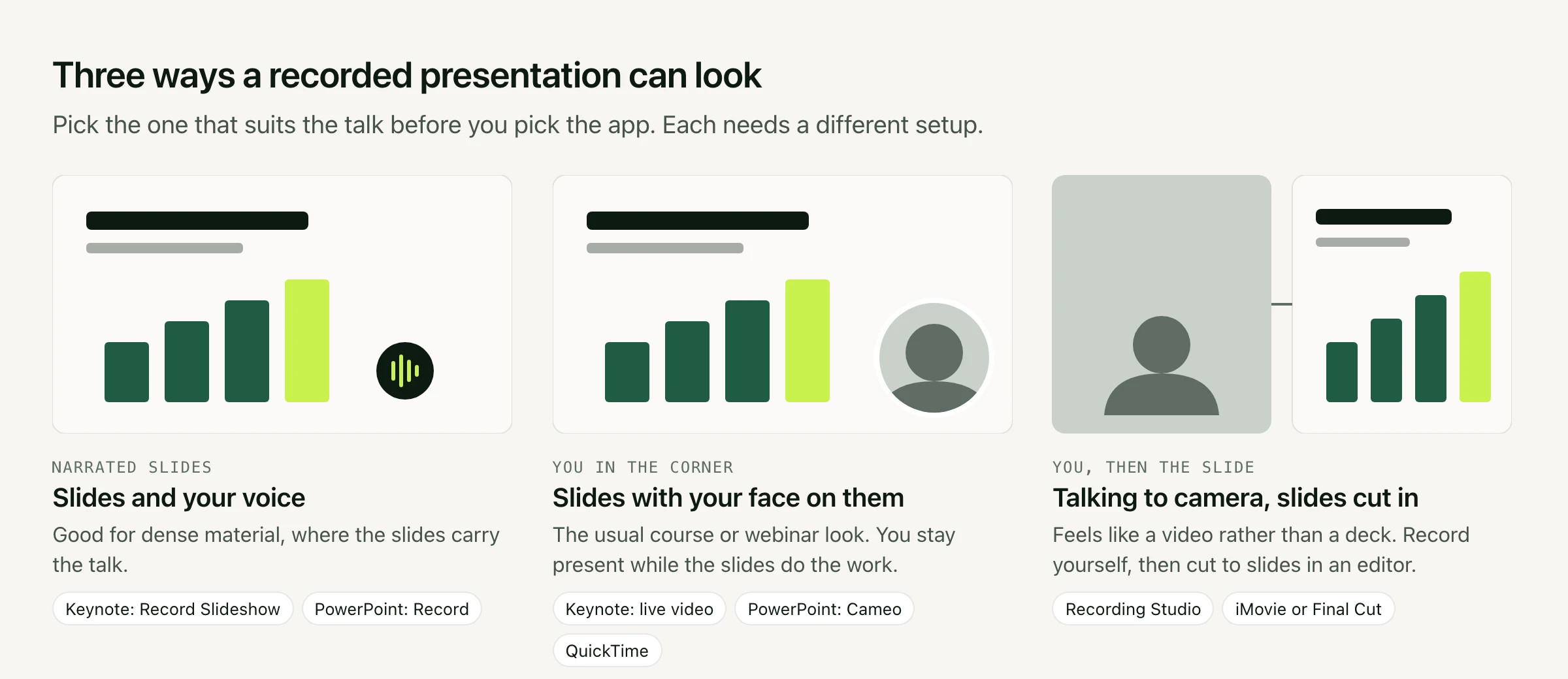
Decide what the viewer should see before you choose the app, because each layout needs a different setup.
Option 1: Keynote
Keynote records your voice as you present and turns it into a movie with the slide timings and transitions in place. To appear on the slides yourself, add live video first.
- Click Media in the toolbar and choose Add Live Video. Your Mac's camera appears on the slide. Resize it and move it to a corner.
- Copy the live video onto every slide you want to appear on. Slides without it record your voice only.
- Choose Play › Record Slideshow. After a countdown, present as normal and advance the slides as you go.
- Stop the recording when you're done. You don't have to get it in one go: drag the playback slider back to a slide and record again from there.
- Choose File › Export To › Movie, set Playback to Slideshow Recording, pick a resolution and export.
One catch: an iPhone or external camera has to be connected to the Mac with a cable to work as a live video source in Keynote.
Option 2: PowerPoint
PowerPoint for Mac has a full recording mode in Microsoft 365 and PowerPoint 2024.
- Click Record at the top right of the window, next to Share, to open the recording view.
- Pick your camera and microphone. Add a Cameo to the slides where your camera should appear, and style its shape and size.
- Present. Teleprompter view shows your notes for the current slide above the slide preview.
- Export. PowerPoint writes a 1080p MP4 next to your presentation.
Teleprompter view helps, but it shows your notes inside the PowerPoint window, several centimetres below the camera, so you'll still read with your eyes visibly down.
Option 3: QuickTime and Your Screen
For Google Slides, a browser demo or any other app, record the screen with your face floating on top. Start a New Movie Recording in QuickTime, choose View › Float on Top, shrink the preview into a corner, then press ⇧⌘5 to record the screen. Here's the full walkthrough.
Option 4: Talk to the Camera, Then Cut to the Slides
The most watchable presentations often aren't a deck with a face on it. They're a person talking to the camera, with a slide cut in when it's worth seeing. Record yourself reading your notes full-frame, export your slides as images (in Keynote, File › Export To › Images), and lay them over the talk in iMovie or Final Cut as cutaways.
This is where Avocado's Recording Studio fits. It records takes from your camera while the prompter runs, stops when you reach the end of the script, and cuts out the pauses before you export. Recording Studio comes with Avocado Pro.
Read Your Notes at the Lens
Every option above leaves your notes somewhere below the camera, and viewers read anything past about 5° below the lens as looking away. On a laptop, that's anything more than about 5 cm down the screen.
Avocado moves the notes up to the camera. Drag your .pptx into it, and it reads the speaker notes, not the slide text: each slide's notes become their own section, headed "Slide 1", "Slide 2" and so on, and slides without notes are skipped. On Keynote, choose File › Export To › PowerPoint first, which keeps your presenter notes.
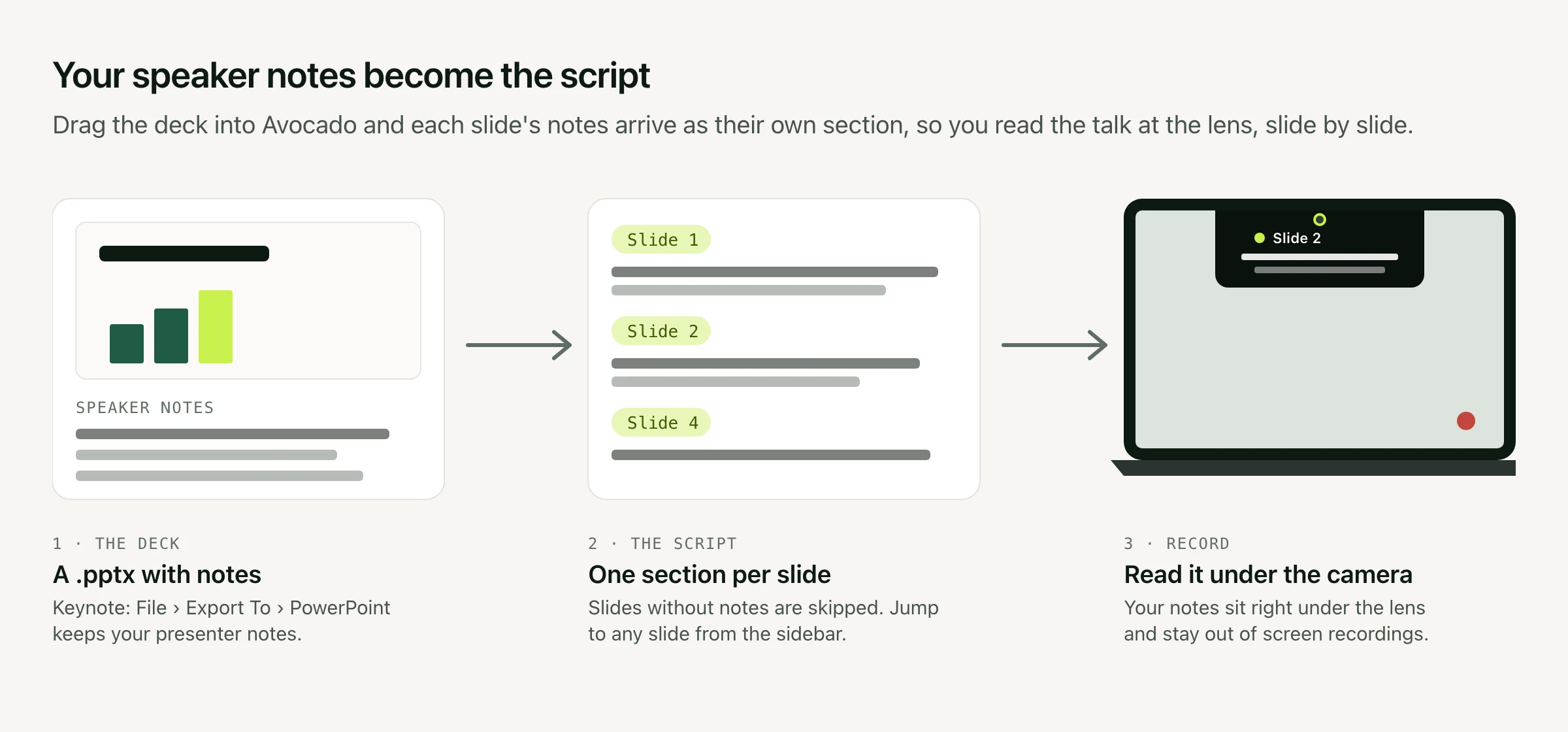
The prompter sits in the MacBook notch, so the line you're reading starts about 2° below the lens. It doesn't appear in screen recordings, so it works alongside Keynote, PowerPoint or a QuickTime screen recording without showing up in the video. It scrolls at a speed you set, or follows your voice with Avocado Pro, and the slide markers let you jump straight to any slide's notes if you need to redo a section.
Tips for a Better Recording
- Write your notes as sentences. Reminders like "Q3 numbers, mention churn" are hard to say smoothly. A sentence or two per slide, written the way you'd say it, reads far better.
- Time it before you record. At an average 150 words a minute, a 10-minute talk is about 1,500 words. The speech length calculator works it out from your script.
- Record in sections. Short sections are easier to get right, and both Keynote and Recording Studio make a redo cheap.
- Do a ten-second test and play it back before the real take. It catches the wrong microphone or a dark room before you've done the whole thing.
- Get the light and camera right. Here's how to look better on a MacBook webcam.