Two Things to Keep in Step
A talk with slides has two timelines. The room follows the slides. You follow your notes. On a lectern with Presenter View they sit side by side, and your eyes do the syncing.
Move the notes into a teleprompter, under the camera or at eye level, and the syncing becomes a job. You advance the slide, then you find your place in the script. Someone asks about the chart on slide 4, you click back to it, and now the script is three sections away from the slide everyone is looking at.
Follow Slides hands that job to the slideshow. Avocado watches Keynote or PowerPoint while you present, and whenever the slide changes, the prompter moves to that slide's notes and puts them on your reading line. Forward, back, or straight to slide 12 from the slide navigator, it lands where you are.
Your Deck Becomes the Script
It starts with your presenter notes. Drop the .key or .pptx file onto Avocado's editor and each slide's notes become a section of the script, headed Slide 1, Slide 2 and so on. The cues list shows every slide and when you'll reach it at your pace, so you can see at a glance which part of the talk runs long.
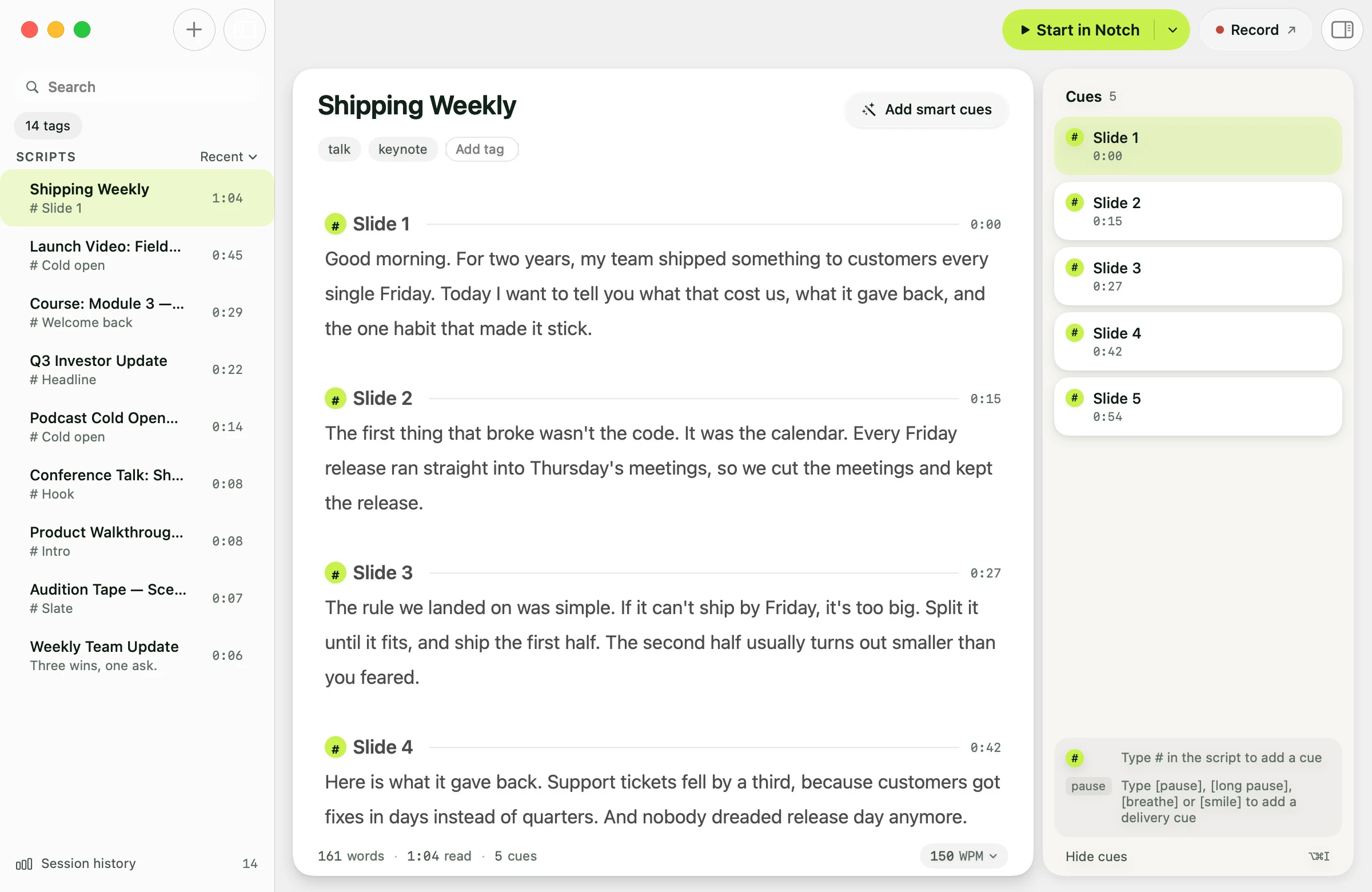
For a Keynote deck, Avocado asks Keynote to open it, reads the notes, and closes it again if it wasn't already open. Your deck is left exactly as it was. The script is yours to edit like any other: tighten a sentence, add a [pause], rename a heading to Slide 4: Pricing so it reads better in the sidebar. As long as the heading starts with the slide's number, the prompter still finds it.
One Switch
Follow Slides is on from the start. Open a deck's script, start the prompter, then start your slideshow. The first time, macOS asks whether Avocado may control Keynote or PowerPoint. Allow it, and that's the whole setup.
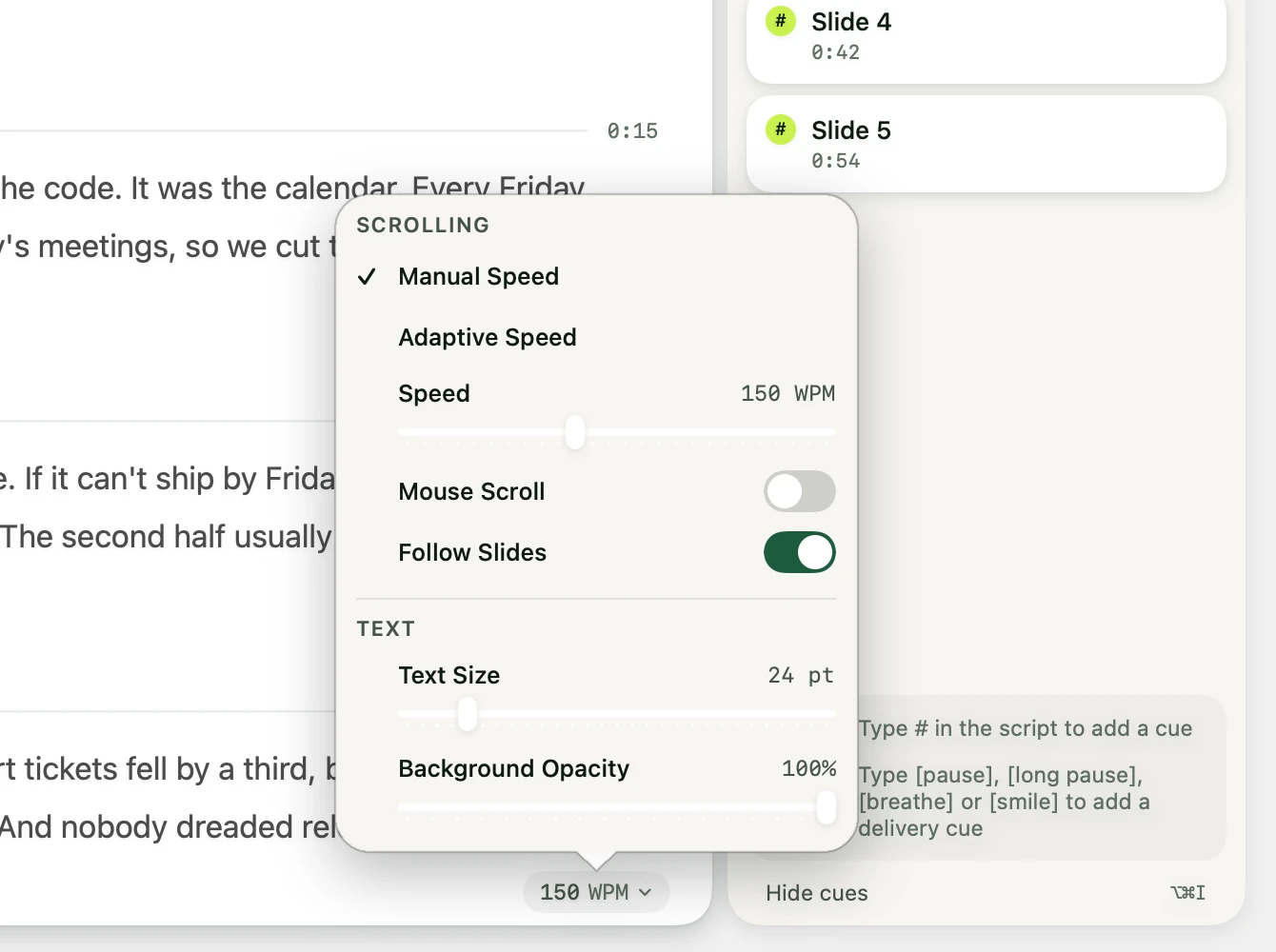
The switch lives in two places: in quick settings on any script with slide headings, and in Settings › Prompter for every deck at once. Turn it off mid-talk and the prompter stops following straight away, so you can drive it yourself for a while.
Between slide changes, everything works as it always does. The script scrolls at your steady speed, or follows your voice with voice scrolling and Adaptive Speed, and the slide change simply moves it to the right place. Use whatever advances your slides: a clicker, the arrow keys, Keynote Remote on your iPhone. Avocado reads the slide from the slideshow itself, so it doesn't matter how you got there.
Slides Without Notes, and Skipped Slides
Real decks are uneven. Some slides are a photo you talk over, and some are backups you keep out of the show. Follow Slides handles both the way you would.

- A slide with no notes gets no section of its own. When it comes up, the prompter stays on the notes you were reading, because that's usually what you're still talking about.
- A skipped slide in Keynote, or a hidden one in PowerPoint, is left out of the script, just as the slideshow leaves it out of the show.
- The numbers stay true to the deck. Slide 6 is still Slide 6 when slide 5 is skipped, so every heading matches the slide it belongs to.
If you reorder the deck later, drop it on the editor again for a fresh script in the new order.
On Stage, or on a Call
In a room, the projector shows the slides and your MacBook shows the script in the notch, right at the top of the screen you're standing behind. You can keep your head up and still see every word.
On a video call, the prompter sits right under the camera and stays out of the screen share, so your audience sees your slides and your eyes on the lens. Here's how to set up the slides and the share on one screen or two.
What You Need
- An Avocado Pro subscription. Follow Slides is part of the monthly and yearly plans. Importing a deck's notes is free for everyone.
- Avocado from avocadonotch.com. The Mac App Store version isn't allowed to control other apps, so it can't follow a slideshow or open a
.keyfile. It still imports.pptxnotes. - Keynote, or PowerPoint for Mac, on macOS 14 or later.
While you present, Avocado only asks the presentation app which slide is showing. It won't launch Keynote or PowerPoint to ask, and it never edits your deck. See the Pro plans, or download Avocado and import your next deck today.