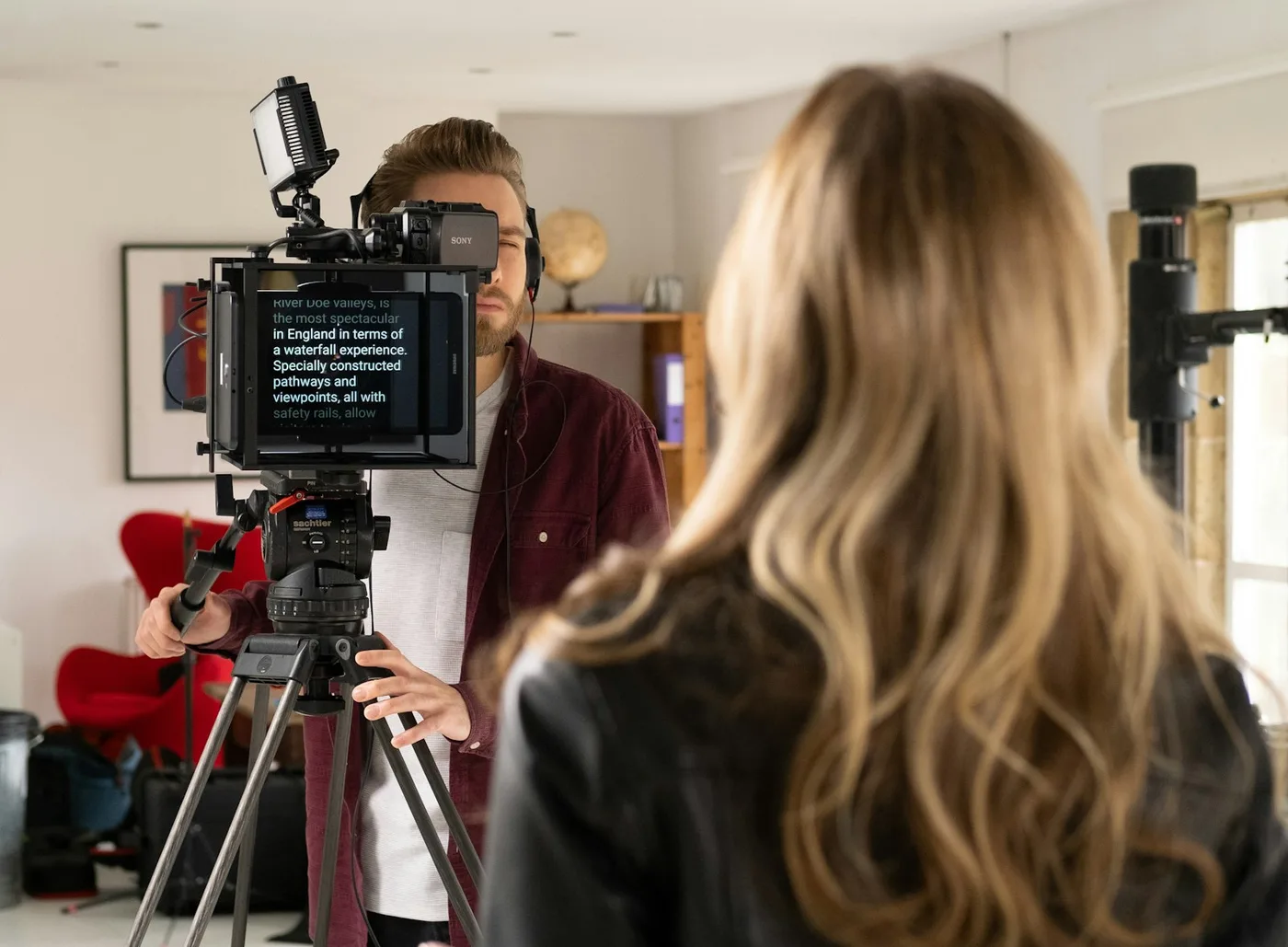
A talking head video is one person speaking straight to the camera, framed from the chest or shoulders up. It's the format of YouTube explainers, course lessons, founder updates, LinkedIn posts and much of what plays on Reels and TikTok, because it's the cheapest way to put a person in front of an audience. You can make one alone with a Mac. Here's the whole job, in the order you'll do it.
What Makes One Work
People decide quickly whether to keep watching, so a good talking head video does four things:
- It looks at the viewer. Your eyes are on the lens, not on notes beside it.
- It gets to the point. The first sentence says what the video is for.
- It sounds clear. People forgive soft focus long before they forgive echo or hiss.
- It works with the sound off. Feeds start videos muted, so captions carry it until someone taps.
1. Write a Script You Can Say
Write for the ear: short sentences, one idea each, the words you'd use out loud. Open with the point, then the reasons, then one thing to do next. Read it aloud once before you record. Any sentence you trip over in the kitchen, you'll trip over on camera.
Length is easy to plan. Most people speak at roughly 130 to 170 words a minute on camera, so a one-minute video is around 150 words and a five-minute lesson around 750. The speech length calculator does the sum for your script, and how to write a video script covers structure.
2. Set Up the Shot
- Camera at eye level. A laptop on a desk looks up your nose. Raise it on a few books until the lens is level with your eyes.
- Head and shoulders. Leave a little room above your head and put your eyes about a third of the way down the frame.
- A background with depth. Sit a few feet in front of a wall rather than against it, and keep what's behind you tidy.
- Room for vertical. If the video is also going to Reels or Shorts, stay near the middle of the frame so a 9:16 crop doesn't cut you off.
The MacBook camera is fine to start with. An iPhone used as a Continuity Camera is a big step up for no extra money. There's more on the built-in camera in how to look better on your MacBook webcam.
3. Light and Sound
Face a window, or put one soft light in front of you and slightly to the side. Avoid a bright window behind you, which turns you into a silhouette, and a lone ceiling light, which puts shadows under your eyes.
Then bring the microphone closer. A USB mic on the desk or a clip-on lavalier, close to your mouth, beats the laptop's built-in mic, which hears the room as much as it hears you. A room with a rug, curtains and a sofa echoes far less than a bare one.
4. Read to the Lens
This is where most solo videos go wrong. With notes in the middle of the screen, your eyes sit well below the lens and viewers read it as looking away. Research on video calls found that people only see eye contact when your gaze is within about 5° of the camera, which at laptop distance is about 5 cm.
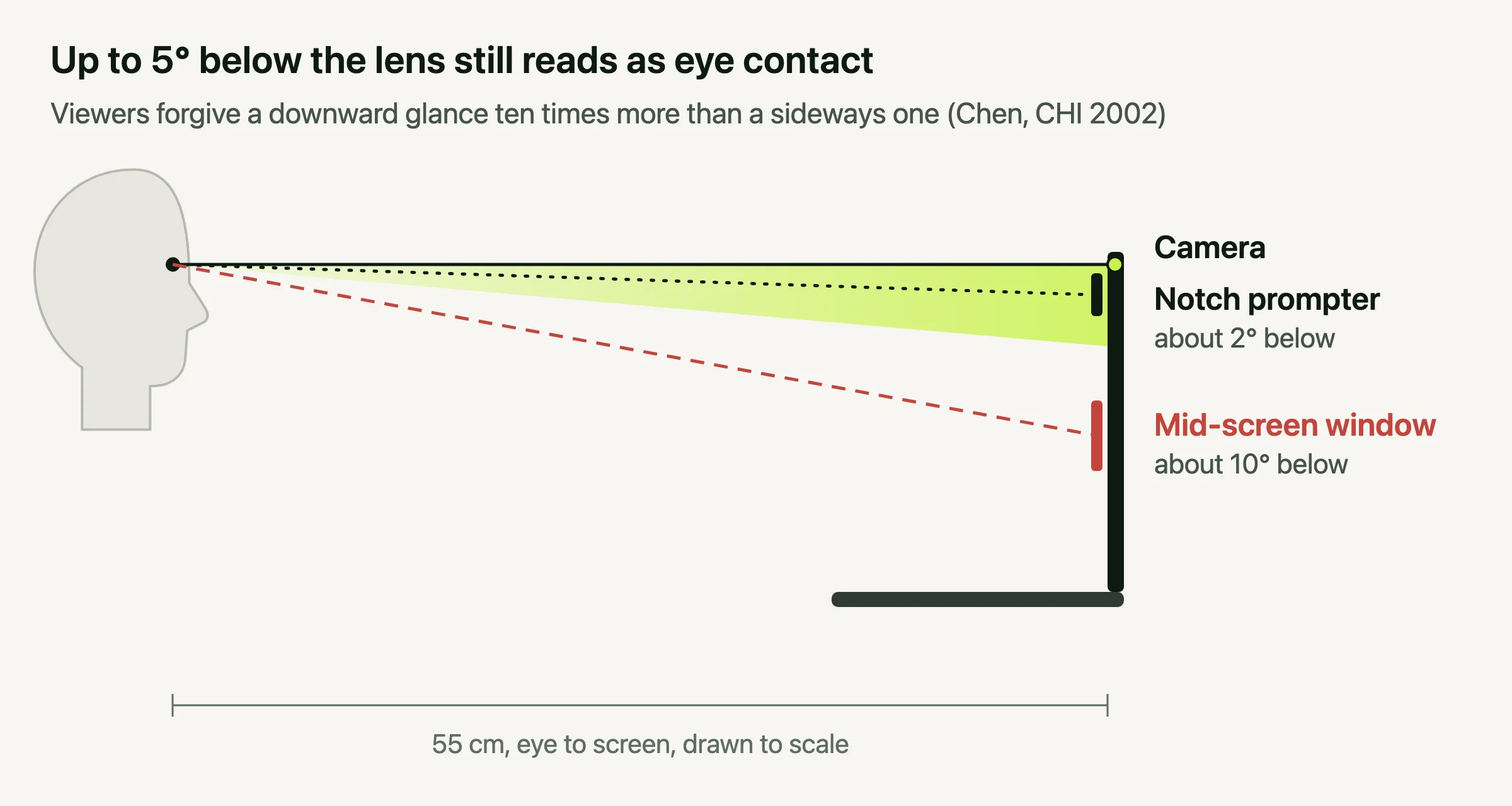
A teleprompter fixes it by putting the words right under the lens. Avocado puts your script in the MacBook notch, or in a floating window under any webcam, and scrolls it as you speak, so you never chase the text or wait for it. For the delivery itself, see how to read a script without sounding like you're reading.
5. Record in Takes
Don't aim for one perfect run. Record the whole script, or a section at a time for anything over a couple of minutes, and keep the take that works. If the first line goes wrong, stop and start again straight away. A stumble at the start is the most common reason to redo a take.
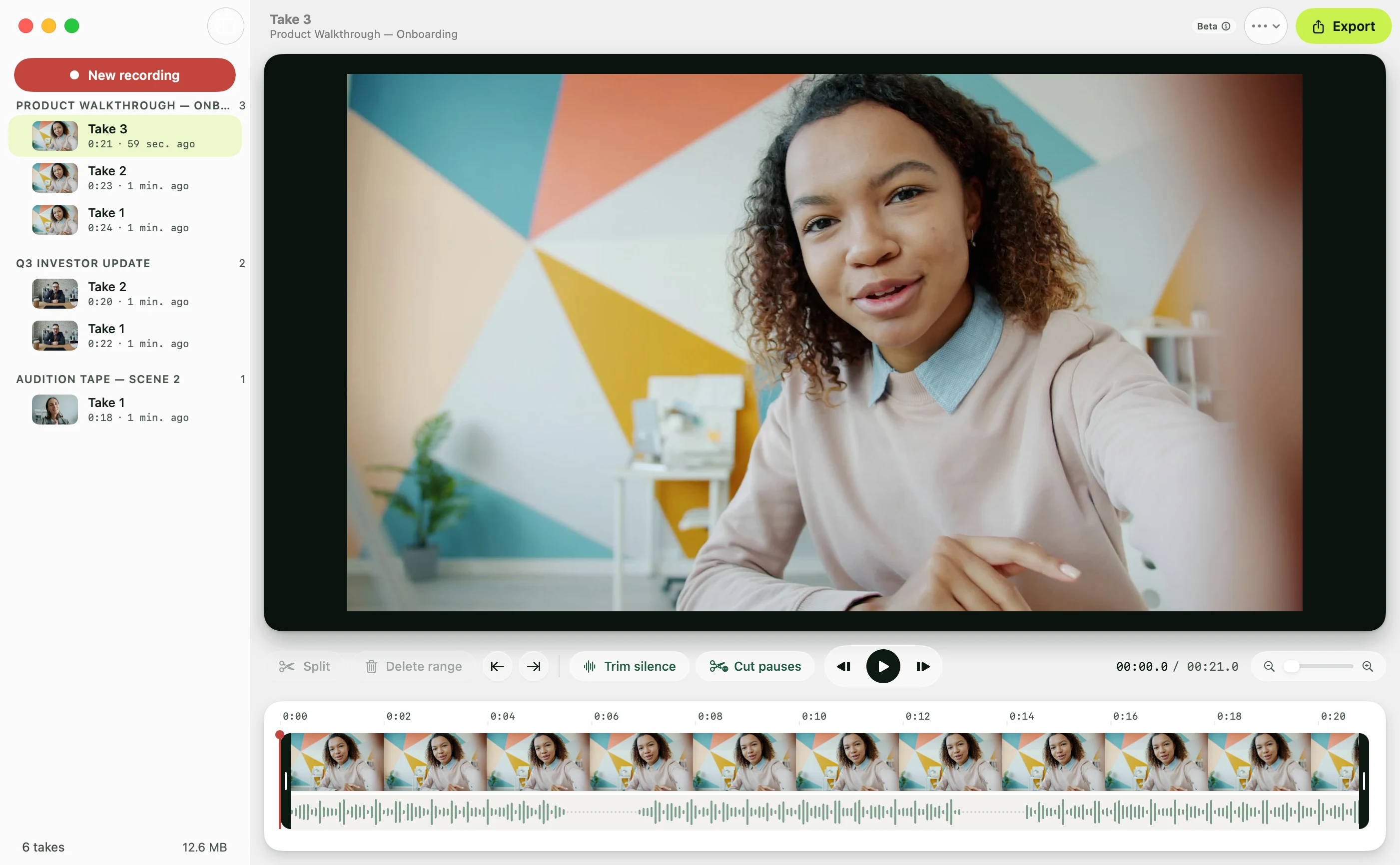
In Avocado's Recording Studio, that loop happens in one window. Press Record, a short countdown runs, and the prompter opens with your script. The take stops by itself when you finish the last line, ⌥⌘R throws a fluffed take away and starts again, and every take is filed under its script, so you're never hunting through files called Movie Recording 7.mov.
6. Cut the Pauses
Talking head videos are cut tight. The usual edit takes out the silence before you start and after you finish, plus the pauses mid-take where you looked away or took a breath. A visible jump between two sentences is normal in this format, and much better than three seconds of nothing.
In most editors, that means finding each gap on the waveform and cutting it by hand. Recording Studio does it in two clicks: Trim Silence removes the quiet at both ends, and Cut Pauses takes out every pause longer than a second. The original recording stays untouched, so any of it can be undone.
7. Add Captions
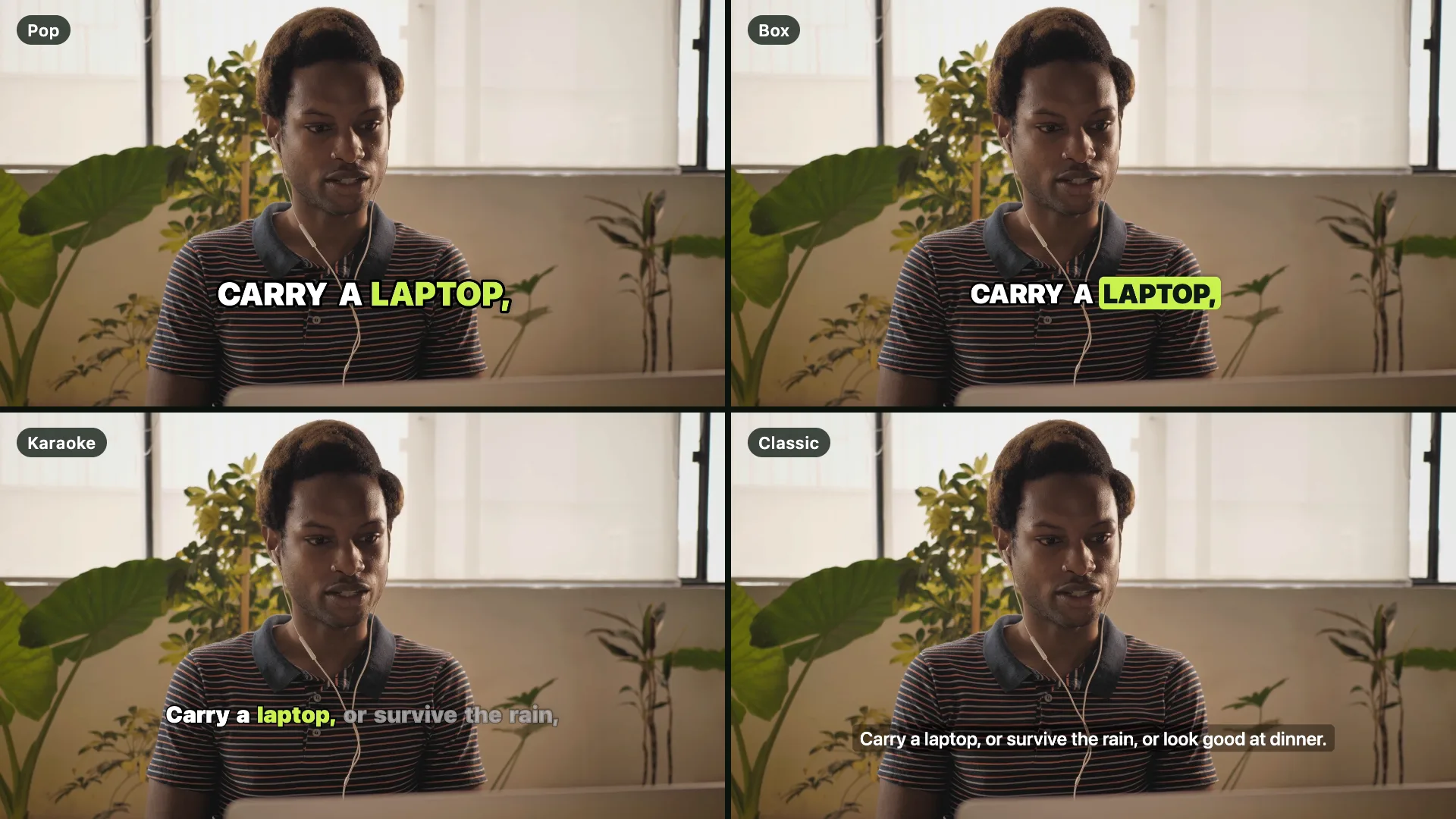
Captions keep a muted viewer watching and make the video usable for anyone who can't hear it. For feeds, burn them into the picture. For YouTube, add a subtitle file as well, which viewers can switch on.
Recording Studio captions each take on your Mac, word by word, spelled from your script so names come out right. Pick a look and export, or save the captions as an .srt. Editing somewhere else? Here's how to add captions in iMovie by hand.
8. Export for Each Platform
- 16:9 for YouTube, courses and your website.
- 9:16 for Shorts, Reels and TikTok.
- 1:1 for LinkedIn and other feeds.
Record once in 16:9 and crop for the rest. Recording Studio exports all three from the same take, shows each crop on your own frame before you commit, and lays the captions out for the shape you pick. Turn on the framing guide while you record and the 9:16 crop is drawn over your preview, so you stay inside it.
The Kit, Briefly
- Camera: your Mac's built-in camera, a USB webcam, or an iPhone as a Continuity Camera.
- Microphone: a USB or clip-on mic, close to your mouth.
- Light: a window in front of you, or one soft light.
- Prompter, recorder and editor: Avocado. The prompter is free. Recording Studio, captions and unlimited voice scrolling are part of Avocado Pro, at $7.99 a month or $79.99 a year.