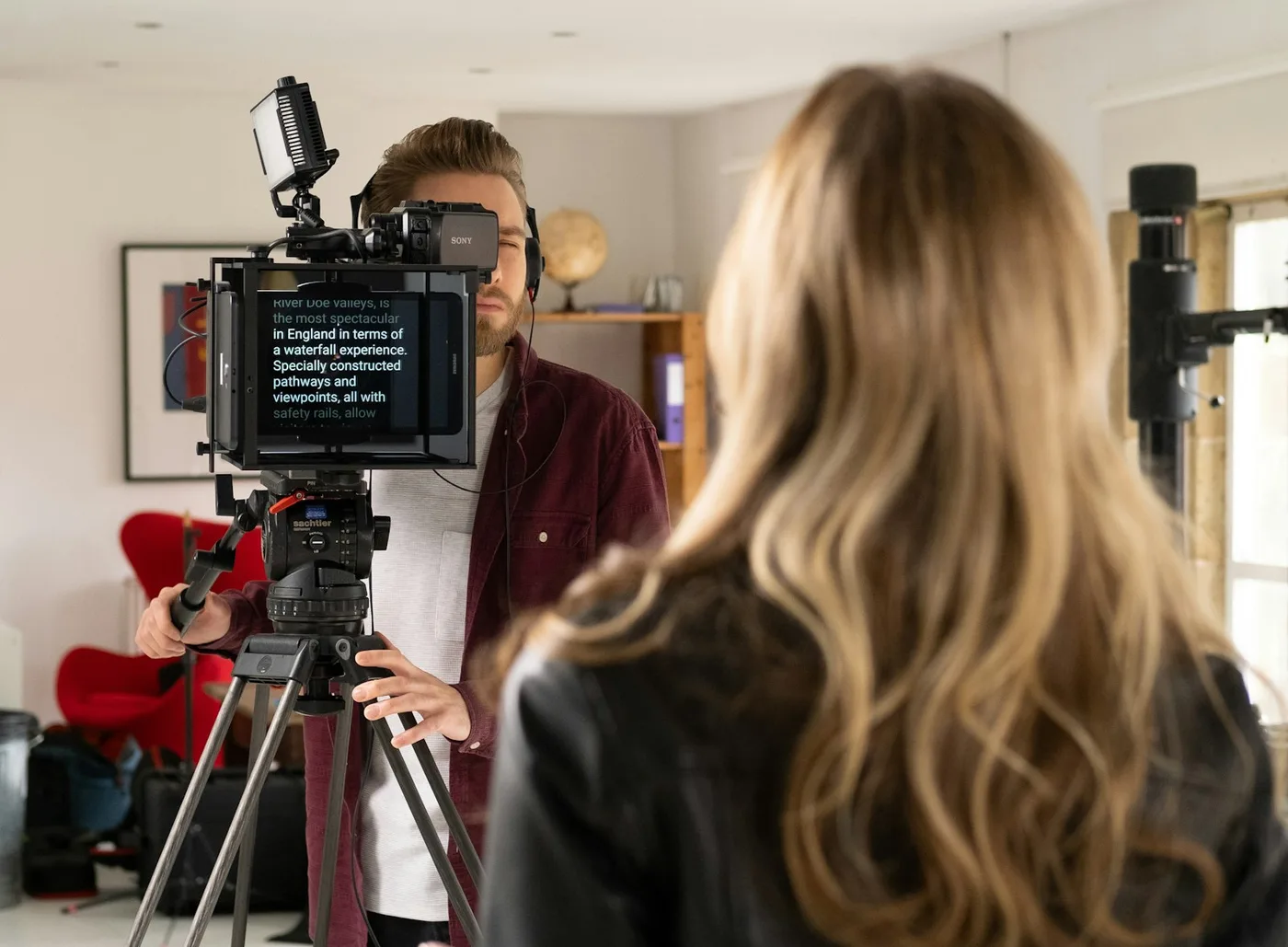
iMovie doesn't make captions for you. It has no automatic captions and can't import an SRT subtitle file, so every caption in iMovie is a title that you type and line up with the speech yourself. That's fine for a short clip. Here's how to do it on a Mac and on an iPhone, how to keep it from eating an afternoon, and the quicker routes when the video is long.
The Short Answer (Mac)
- Open your project and click Titles above the browser.
- Drag Standard Lower Third into the timeline, just above the clip, where the first line starts.
- Double-click the placeholder text in the viewer and type or paste the line.
- Drag the ends of the title in the timeline so it starts and stops with that line.
- Copy the title, move the playhead to the next line, paste, and change the words. Repeat to the end.
- Export with File › Share › File. The captions are burned into the picture.
Step by Step on a Mac
Set up one caption properly
Click Titles above the browser and find Standard Lower Third, or type its name in the search field. Drag it to the space just above your clip rather than onto the clip. That gives the title its own track, so you can make it as long or short as the line it carries.
Standard Lower Third comes with two left-aligned lines of text, one bold and one thin. Captions read better centred and in a single weight, so set this up once: select the text in the viewer, centre it, and use the font controls above the viewer to choose a clear sans-serif, a size you can read on a phone, and white with an outline so it holds up over any background. Get this right on the first title. Every later caption will be a copy of it, and restyling fifty titles afterwards means fifty edits.
Caption line by line
Play the video, stop where a sentence starts and put the title there. Type the line, then drag the title's right edge to where the line ends. Keep each caption to one thought, a line or two of about 40 characters, so people can read it before it changes.
For the next line, select the finished title and press ⌘C, move the playhead to where the next line starts on an empty part of the title track, press ⌘V and change the words. The copy keeps your font, size and position.
Have the words ready
Typing is the slow part, so get the text first. If you read from a script, the script is your transcript: keep it open in TextEdit and paste one line at a time. If someone sent you an SRT file, open that in TextEdit too. It's plain text, numbered blocks each with a start and end time, so it tells you what to paste and where.
Check and export
Play the whole project once, watching only the captions. A caption that hangs into the next sentence, or shows up before the words do, is the usual slip. Then choose File › Share › File. The captions are part of the picture now, so they appear wherever the video plays and can't be switched off.
On iPhone or iPad
iMovie on an iPhone or iPad works the same way, with one catch: a title always covers the whole clip it sits on. To caption line by line, split the clip first. Move the playhead to where a line starts, tap the clip, tap the Actions button (the scissors) and tap Split. Then tap each piece, tap the Titles button, pick a style and type the line in the viewer.
Burned-In Captions or a Subtitle File?
- Burned-in captions, also called open captions, are part of the picture. They show on feeds that play video with the sound off, like Reels, TikTok and LinkedIn, and nobody can turn them off. This is what iMovie makes.
- A subtitle file, usually an .srt, travels next to the video as closed captions. Viewers switch it on, and search engines can read it. iMovie can't make one or open one. On YouTube, upload it in YouTube Studio under Subtitles.
For a YouTube video you can skip iMovie's titles altogether: upload the video, let YouTube's automatic captions take a first pass, and correct them in YouTube Studio.
Faster Ways on a Mac
Avocado, for videos you record yourself
If the video is you talking to camera, the quickest captions are the ones made where you record. Avocado's Recording Studio films you while your script scrolls under the camera. When the take ends, it listens to the recording on your Mac and captions every word, timed to your voice and spelled the way your script spells it, so names and product terms come out right.
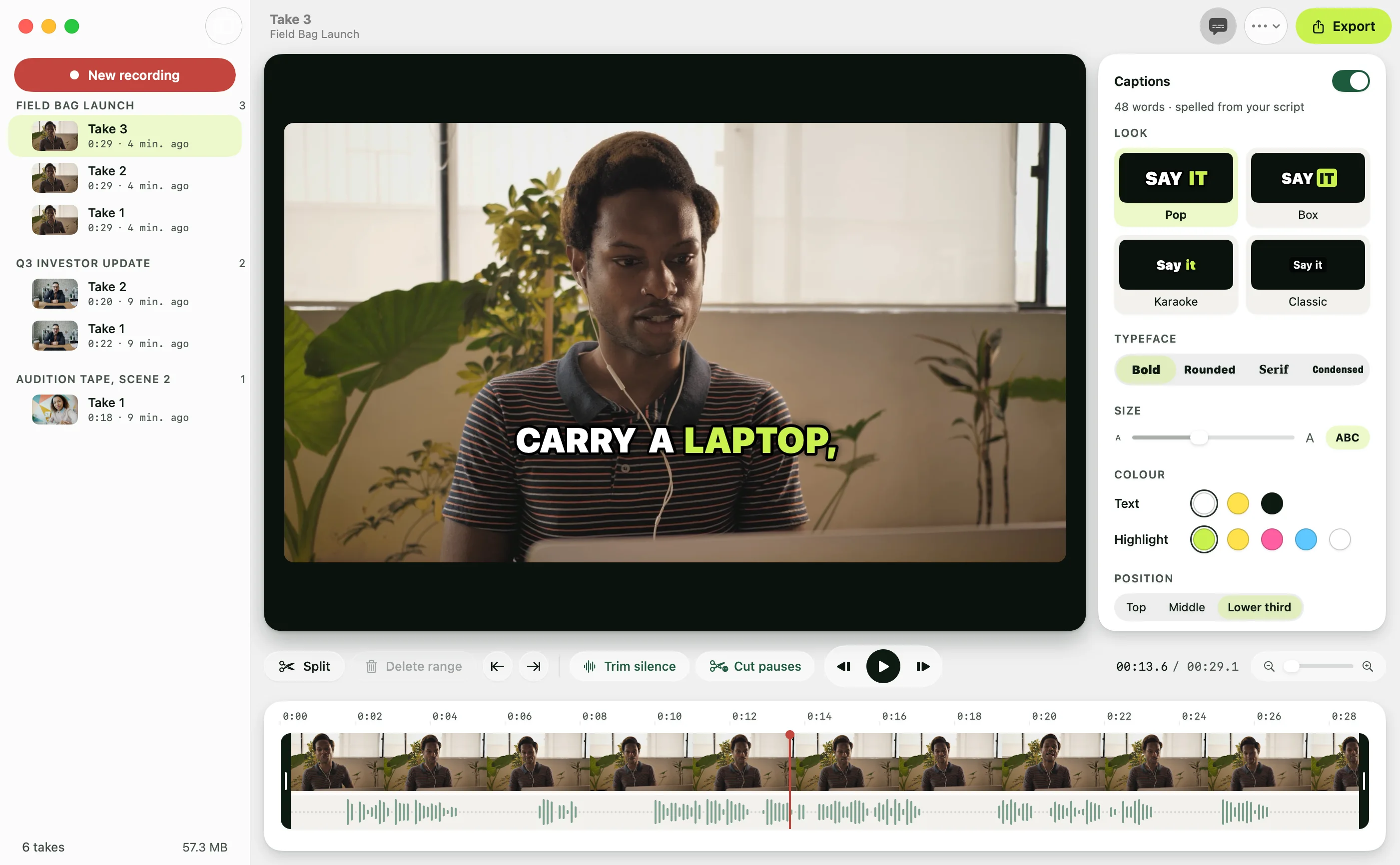
- Four looks: Pop, Box, Karaoke and Classic, with your choice of typeface, size, colours and position.
- They follow your edits. Trim the start or let Cut Pauses take out the dead air, and the captions move with the words.
- Both kinds. Export an MP4 with the captions burned in, wide, vertical or square, each laid out for its shape. Or save the same captions as an .srt for YouTube and LinkedIn.
Want music or B-roll on top? Bring the MP4 into iMovie, captions already in the picture. Avocado captions the takes you record in it; it doesn't open videos from elsewhere. Recording Studio and captions are part of Avocado Pro on the Mac, and the iPhone app captions its takes the same way.
Final Cut Pro
Apple's paid editor can write captions for footage you already have. Select the clips with speech and choose Edit › Generate Captions › Subtitles (⇧⌘S). It needs a Mac with Apple silicon, works in U.S. English only, and downloads its language model the first time. The result is a row of subtitle titles in the timeline, which you then read through and correct.
Planning the video from scratch? How to make a talking head video covers the whole job, from script to export.