Instagram, TikTok and YouTube can each add captions to your video. Each does it in its own app, its own style and its own way of getting names wrong. Here's how to caption on all three on an iPhone, which kind of caption to use, and how to caption a take once before you post it everywhere.
The Short Answer
- TikTok: after you record or upload, turn on auto captions on the editing page, then tap the text to fix any words.
- Instagram Reels: turn on automatic closed captions for the reel, or open the video in Instagram's Edits app, tap Captions, then Generate Captions for styled captions in the picture.
- YouTube Shorts: in the Shorts editor, tap Captions, then change the font and colour and fix the text.
- All three at once: record in a teleprompter app that captions the take, like Avocado, and upload the same captioned file everywhere.
Burned-In or Closed Captions?
Burned-in captions (also called open captions) are part of the picture. Everyone sees them, they look the same on every platform, and they survive a re-upload. Closed captions are a separate text track. Viewers can switch them on and off, and the platform draws them in its own style.
For short videos, burned-in usually wins: most people scroll with the sound off, and big captions that light up word by word keep them watching. Closed captions are still worth adding on YouTube, where viewers expect the CC button.
How to Add Captions on TikTok
- Record a video in TikTok, or tap + and upload one.
- On the editing page, choose Captions (auto captions). TikTok transcribes the speech and puts it on screen.
- Tap the captions to fix any words, especially names and numbers.
- Keep stickers, polls and text boxes from covering them, then post.
Viewers can turn TikTok's auto captions off from the share panel. Captions you've burned into the video yourself stay on.
How to Add Captions to Instagram Reels
Instagram gives you two kinds:
- Automatic closed captions. Instagram uses speech recognition to write out what's said at the bottom of the reel. You can turn them on or off for your reels, and viewers can hide them. Instagram's help page "Manage closed captions for your reels" has the current steps.
- Styled captions in Edits. Open your project in the Edits app and tap Captions. Pick the spoken language and a caption style, then tap Generate Captions. You can then edit the text, change the style, move the captions and adjust their opacity before you export and share to Instagram.
How to Add Captions to YouTube Shorts
- Record or upload your Short in the YouTube app.
- In the editor, tap Captions. YouTube adds automatic captions.
- Change the font and text colour, and correct any words.
YouTube's Shorts captions work on mobile and only in some languages. For a longer video, or a Short you've uploaded from a computer, add a subtitle file in YouTube Studio under Subtitles instead.
Where Automatic Captions Go Wrong
- Names and jargon. Speech recognition writes the nearest common word, so your product, your guest and your town come out wrong. Check every line.
- Three apps, three jobs. Posting the same video to TikTok, Reels and Shorts means captioning it three times, in three styles, and fixing the same mistakes three times.
- Double captions. If you burn captions in, turn off the platform's automatic ones, or viewers get two sets.
- Covered captions. Each app draws its buttons down the right and the username and description along the bottom. Keep captions clear of both: in the middle of the frame, or just above that bottom strip.
Caption the Take Before It Leaves Your Phone
If you read from a script, you already have the words, so the captions shouldn't have to guess them. Avocado is a teleprompter app for iPhone and iPad, and with Avocado Pro it records the take while you read and captions it in the take editor:
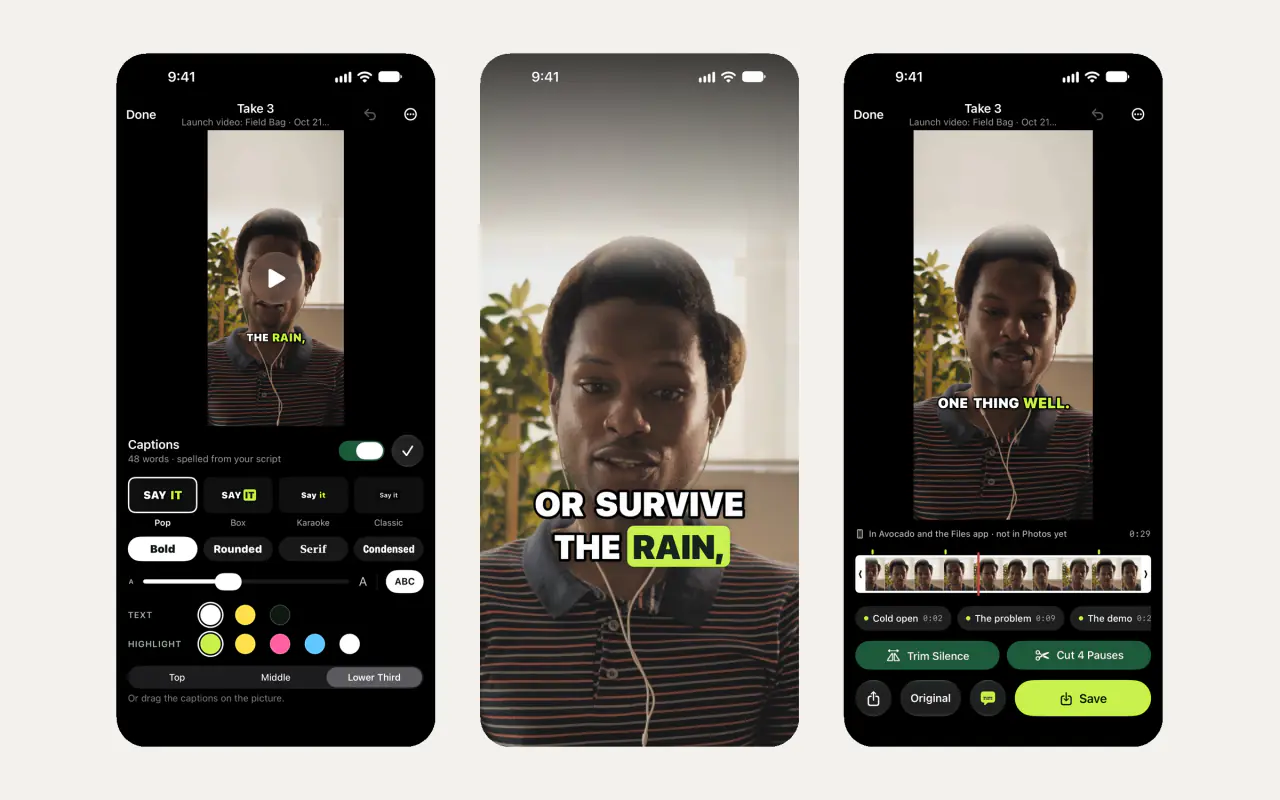
- Spelled from your script. The words are heard on your iPhone and matched to the script you read, so names come out the way you wrote them.
- Word by word. Each word lights up as you say it, in Pop, Box, Karaoke or Classic.
- Your style. Pick a font (Bold, Rounded, Serif or Condensed), the size, the text and highlight colours, and Top, Middle or Lower Third, or drag the captions where you want them.
- Burned in or as a file. The captions are burned into the video you save to Photos, or shared as an .srt subtitle file for YouTube.
- A clean take first. Trim Silence and Cut Pauses take out the dead air in one tap, and the take is 9:16, with 4:5 and 1:1 versions for feed posts.
Then upload the same file to TikTok, Reels and Shorts, with the platforms' own captions off. The catch: Avocado captions takes you record in Avocado, where it knows the script. It can't open a video from another app. Here's more on recording short videos with a teleprompter.
Captions on a Mac?
If you record on a Mac, Avocado's Recording Studio does the same with your webcam: word-by-word captions spelled from your script, in 16:9, 9:16 or 1:1. Editing in iMovie? It has no automatic captions, but here's how to add them as titles.