The Short Answer
Connect the Elgato Prompter to your Mac with USB-C and let Elgato's setup install its display driver, so the Prompter appears as an extra screen. Then turn on Director Mode in Avocado, open the Viewer link in a browser window, drag that window onto the Prompter and make it full screen. The script on the Prompter now scrolls in step with Avocado on your Mac and follows your voice through the Mac's microphone. Director Mode and the Viewer are part of Avocado Pro.
Why Use Other Software on the Elgato Prompter?
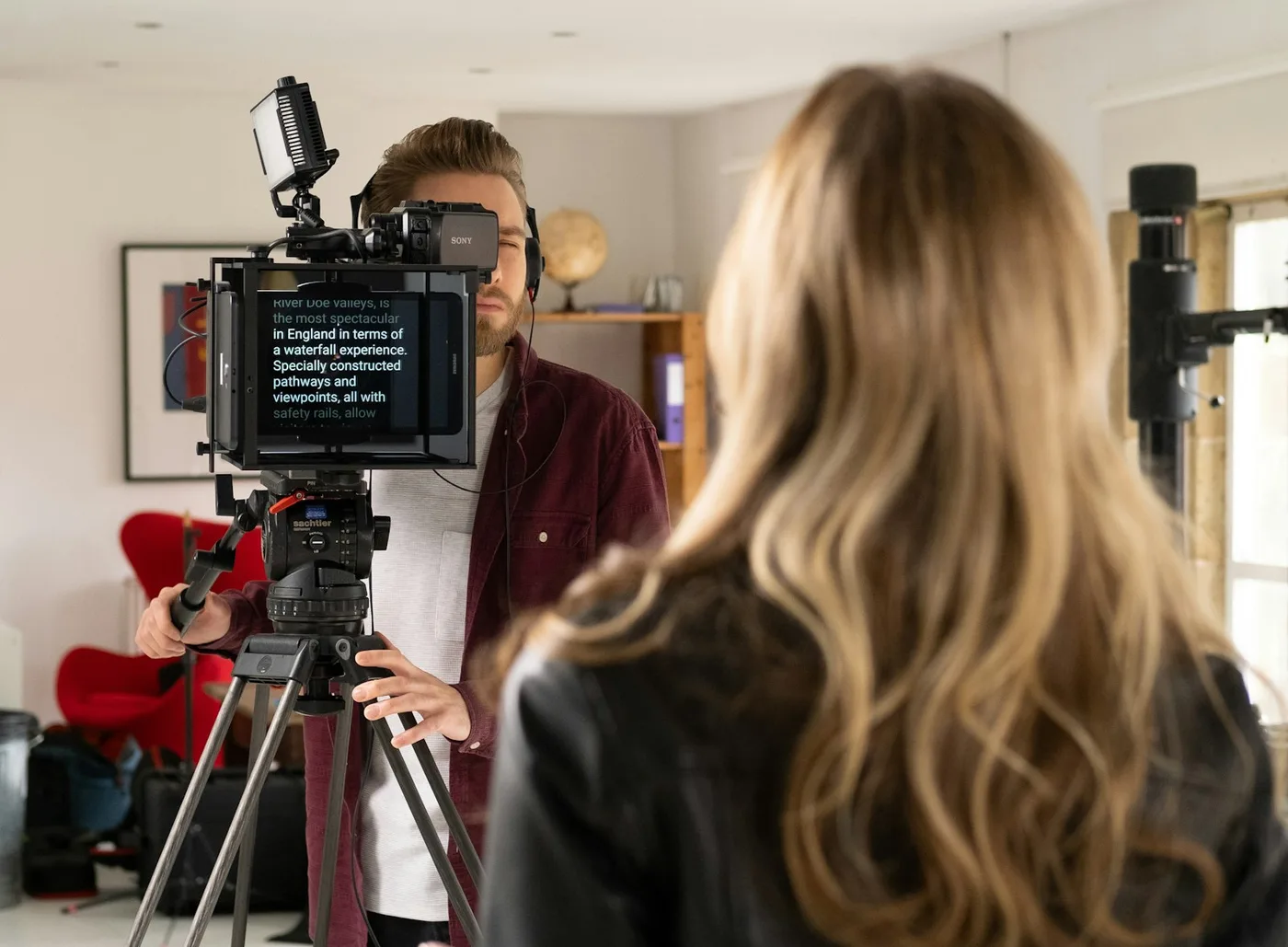
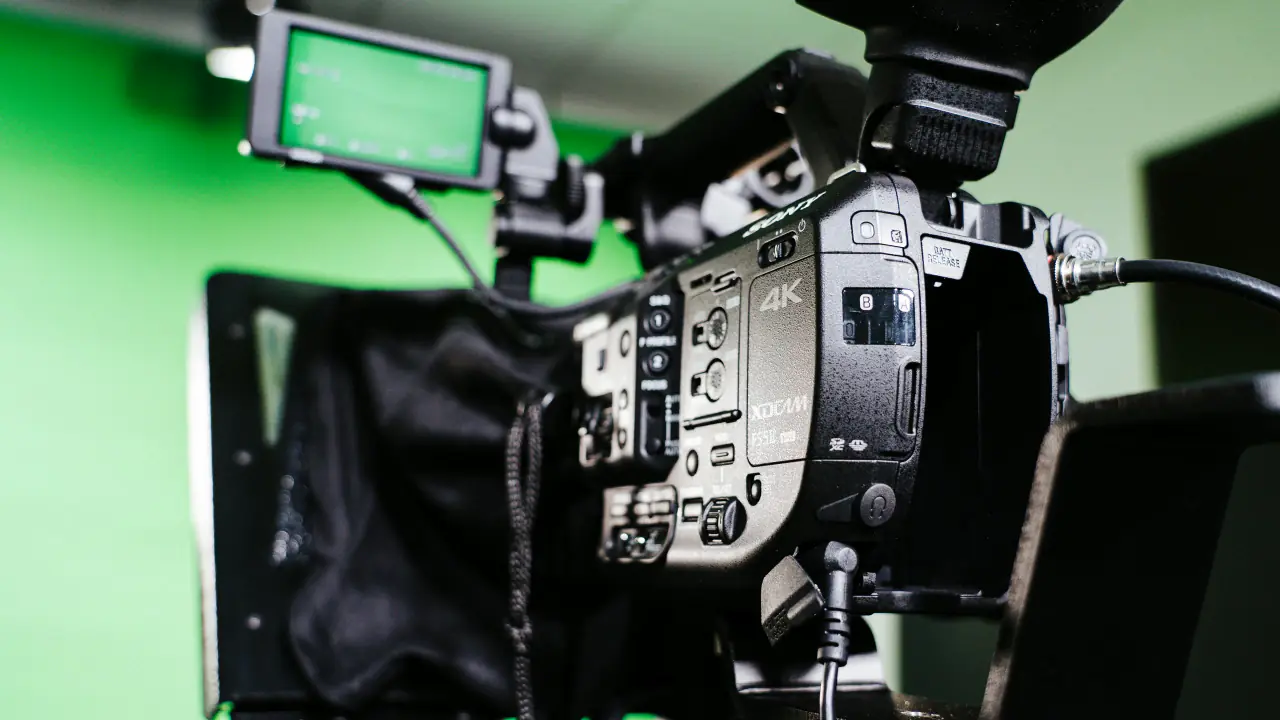
The Prompter is a 9-inch screen under a sheet of beam-splitter glass that sits in front of your lens. Elgato's Camera Hub drives it with its own teleprompter, and it can also treat the Prompter as an ordinary monitor: Elgato's own page says you can move any app or window onto it, like an extra display.
That's the part that matters. Once the Prompter is a display, the software on it is your choice, and you can keep everything you already use for scripts on your Mac:
- Voice following that keeps up with you. Avocado tracks your place in the script and learns your natural pace, so the text glides with you, holds when you stop and waits while you ad-lib.
- Your script library. Tags, search, Script Markers you can jump to mid-take, and PowerPoint import that makes one marker per slide.
- Someone else at the controls. A producer can play, pause, change speed and jump between sections from their phone.
- More than one screen. The same script on the Prompter, on a phone at a lectern and on a producer's tablet, all at once.
How It Fits Together
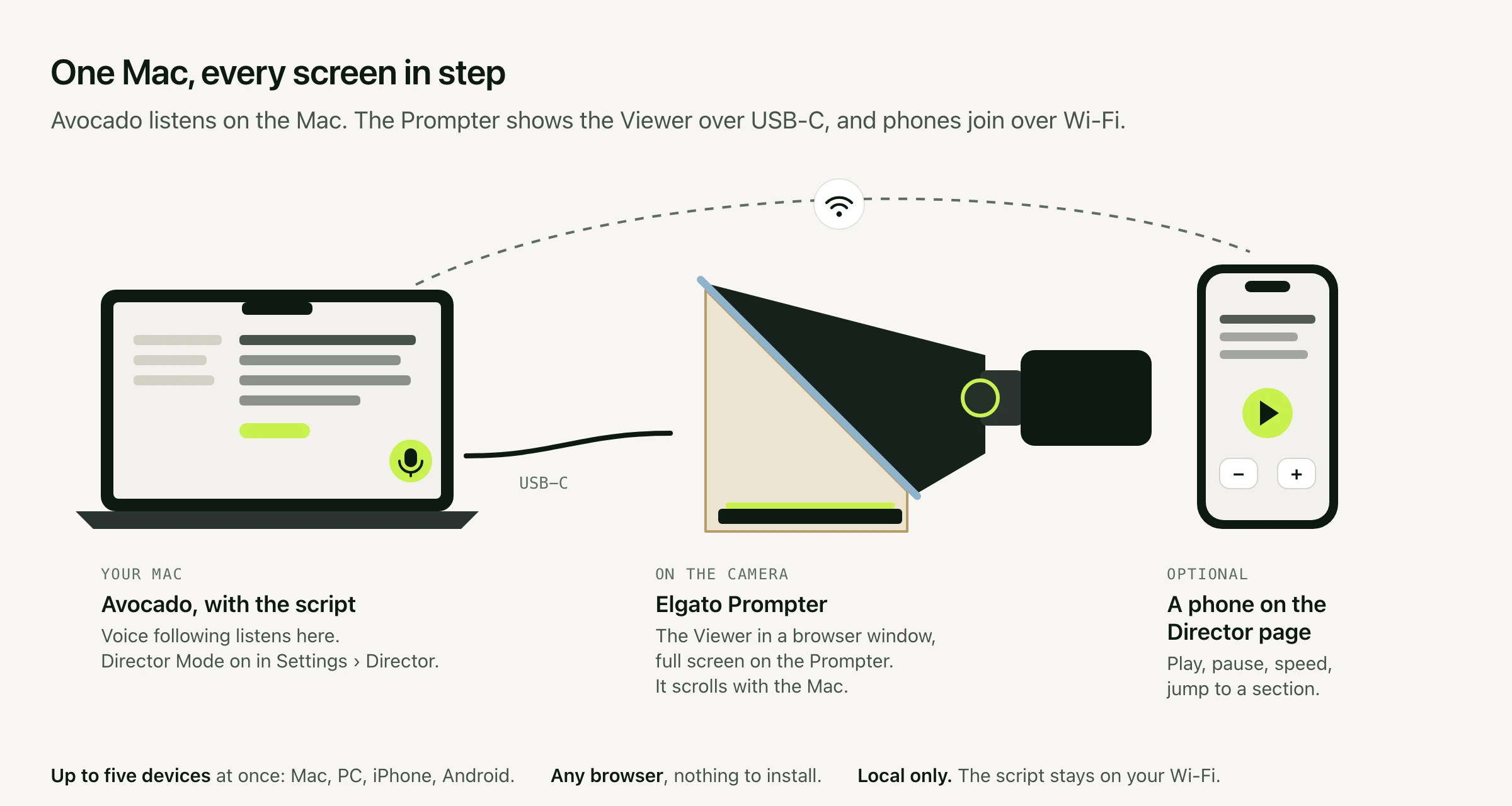
Avocado runs on your Mac and holds the script. The Prompter is plugged into the same Mac and shows the Viewer in a browser window. Phones and tablets join over your Wi-Fi. Avocado listens to you through the Mac's microphone, and every screen follows it.
Set It Up in Five Steps
- Connect the Prompter. Plug it into your Mac with USB-C and run Elgato's first-time setup. On a Mac, the Prompter's screen needs Elgato's display driver (DisplayLink), which the setup installs. In System Settings › Displays, check the Prompter is an extended display, not a mirror of your main screen.
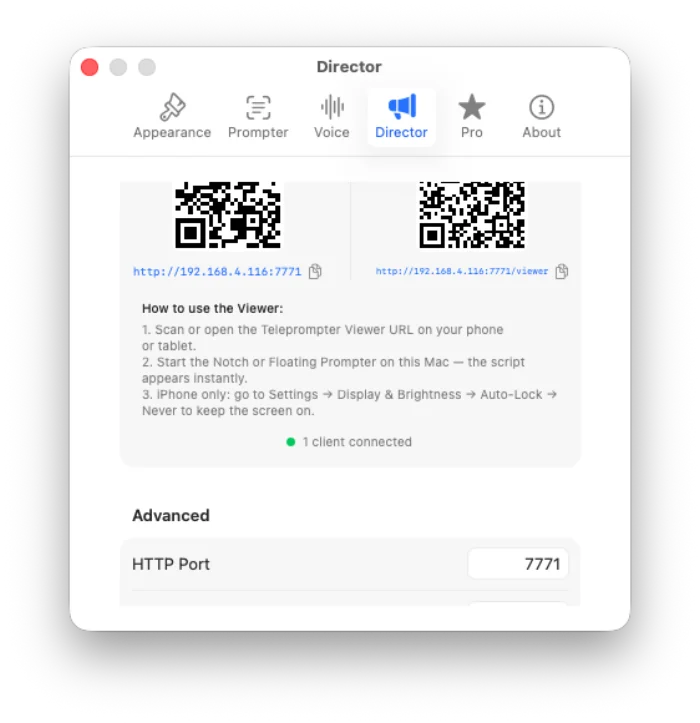
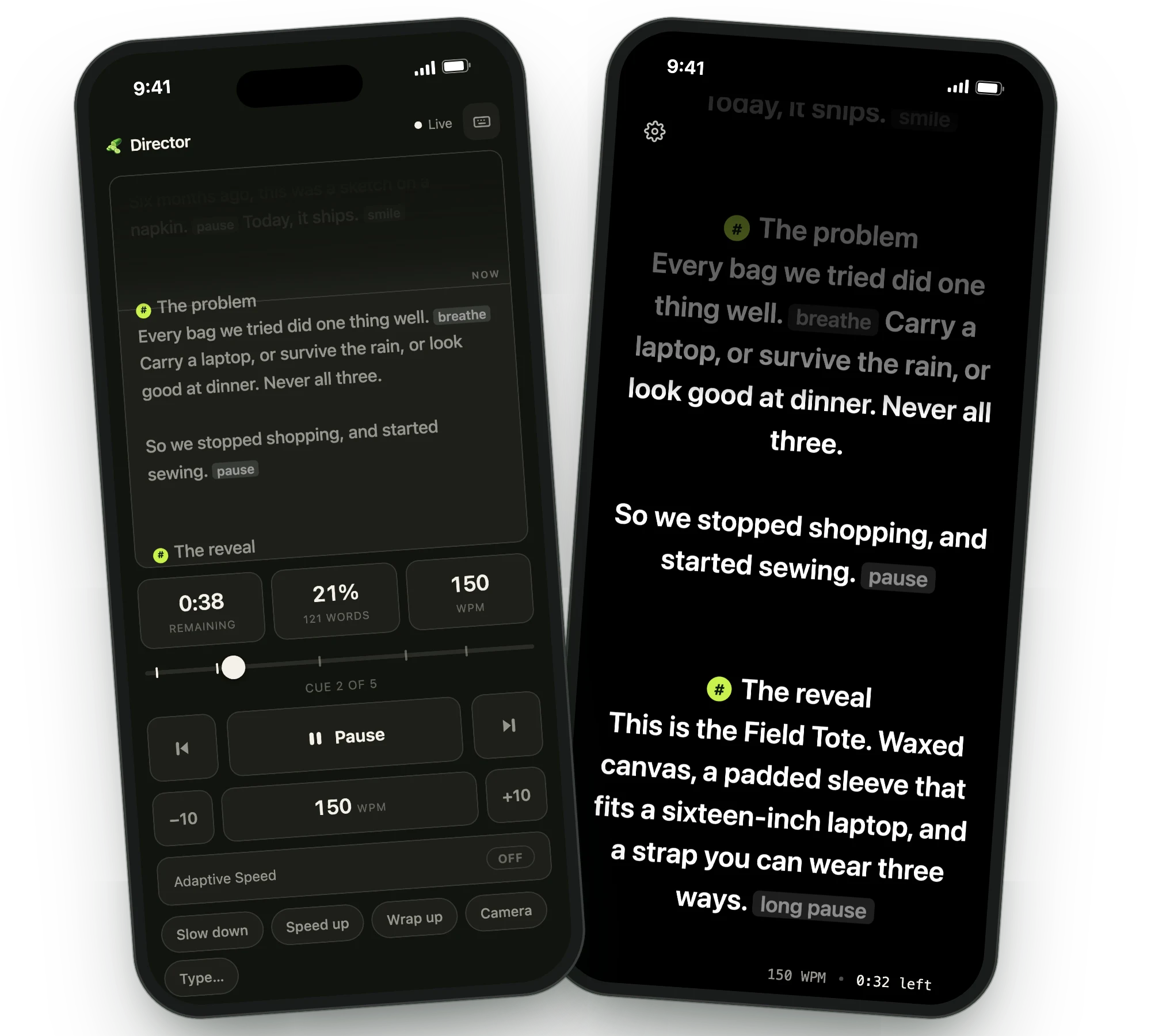
- Turn on Director Mode. Open your script in Avocado, then go to Settings › Director. The Mac shows two QR codes and their links: one for the Director remote and one for the Viewer.
- Open the Viewer on the Mac. Copy the Viewer link into Safari or Chrome on the same Mac.
- Move it onto the Prompter. Drag the browser window onto the Prompter's screen and make it full screen.
- Start the prompter and read. Open the Notch or Floating prompter in Avocado on your Mac: the Viewer waits until one is running. Then press play, or just start talking with voice following on. The Prompter scrolls in step with the Mac.
After the first time it takes seconds. The Viewer's address stays the same from session to session, so the browser remembers it. If a Viewer page was left open from an earlier session, reload it.
Check the text through the glass
The Prompter shows its screen as a reflection in the glass. Look at the text from where you'll sit. If it reads backwards, open the Viewer's gear menu and turn on Mirror: it flips only that screen, and your Mac's own prompter stays normal. To flip every Viewer at once, turn on Mirror Text in Avocado on the Mac, under Settings › Prompter › Hardware Teleprompters. If the text is rotated or upside down, the Prompter's display settings in Camera Hub can rotate or flip it.
Why the Viewer, not Avocado's own window
Avocado's prompter is hidden from screen capture on purpose, so it never shows on Zoom, Meet or a screen recording. The Prompter's screen on a Mac runs through DisplayLink, which works by capturing the screen, so a capture-hidden window will most likely stay blank there. The Viewer is a normal browser window, which is exactly what the Prompter is built to show. (Avocado's Demo Mode makes its own windows visible to capture, but then the prompter also shows on every screen share and recording, so the Viewer is the better route.) One side effect of a normal window: share a single window rather than your whole screen on a call, so the Viewer stays out of it.
Let Your Voice Drive It
With voice following on, you don't need a remote or a scroll speed at all. Avocado listens through your Mac's microphone, moves the script as you speak and stops when you stop. On Pro, English scripts follow you word by word, with the next word marked, and the text waits for as long as you go off script. The Prompter and every other screen in Director Mode follow along.
If the Mac sits a few feet behind the camera, its built-in microphone may struggle to hear you. Plug in the microphone you're recording with, or a lavalier, and choose it as Avocado's microphone in its settings. Everything runs on your Mac, so it works offline too.
Add a Producer and More Screens
Director Mode takes up to five pages at once, Director remotes and Viewers together, in any browser: Mac, Windows, iPhone, iPad or Android, with nothing to install and no account. The Prompter's Viewer counts as one of them.
- A producer's phone on the Director page. Play, pause, change the speed, scrub, jump between Script Markers, and send you a Talkback message mid-take.
- A second Viewer at a lectern. A tablet on a music stand works as a confidence monitor for the parts you deliver standing up. (More on confidence monitors.)
- A Viewer on a second machine. If the Prompter is plugged into a Windows PC or a second Mac, open the Viewer there instead. Any computer on the same Wi-Fi works.
It Stays on Your Wi-Fi
Your Mac serves the Viewer and the Director page over your local network. The script goes from your Mac to the screens you connect and nowhere else: no server, no account, no cloud. Each session uses a new hidden key, so a page left open from an earlier session can't reconnect until it's reloaded.
No Elgato Prompter?
You may not need one. On a MacBook, Avocado puts the script in the notch, right next to the camera, where reading already looks like eye contact. For a camera on a tripod, a phone mounted under the lens with the Viewer open does the same job as a prompter screen. For a camera with glass in front of it, a DIY rig and a tablet work too. And if the phone is the camera, Avocado for iPhone and iPad puts the script under the front camera, follows your voice and records the take. (Here's how it compares with other iPhone teleprompters.)
The same steps work for the Elgato Prompter XL and any prompter monitor that shows up on your Mac as a display. Download Avocado to try it: the free tier includes the full prompter, and Pro adds Director Mode and the Viewer.