The Second-Screen Problem
Here's a setup most Mac-based presenters end up in: your MacBook is running the session — recording software open, script loaded, camera plugged in. But the MacBook screen is off to the side, not in front of the lens. So you're either craning your neck to read, or you've accepted that you're going to look slightly off-camera for the entire take.
The standard fix — hardware teleprompter monitor, dedicated second display — works but adds equipment, cables, and complexity that most solo creators don't want to deal with. There's a simpler answer: the phone already in your pocket.
Teleprompter Viewer: Any Device, No Install
When you enable Director Mode in Avocado Pro, the app generates two things: a control URL for the director, and a Viewer URL for a standalone teleprompter display. Open the Viewer URL in Safari, Chrome, or any browser on any device on the same Wi-Fi — iPhone, iPad, Android phone, Windows laptop — and that device becomes a live, synced teleprompter screen. No App Store. No account. No pairing step. You're up in under ten seconds.
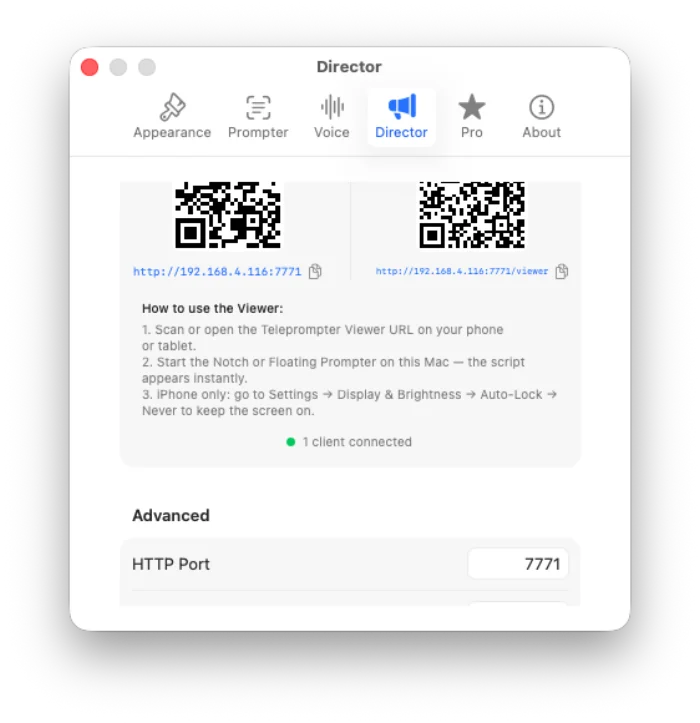
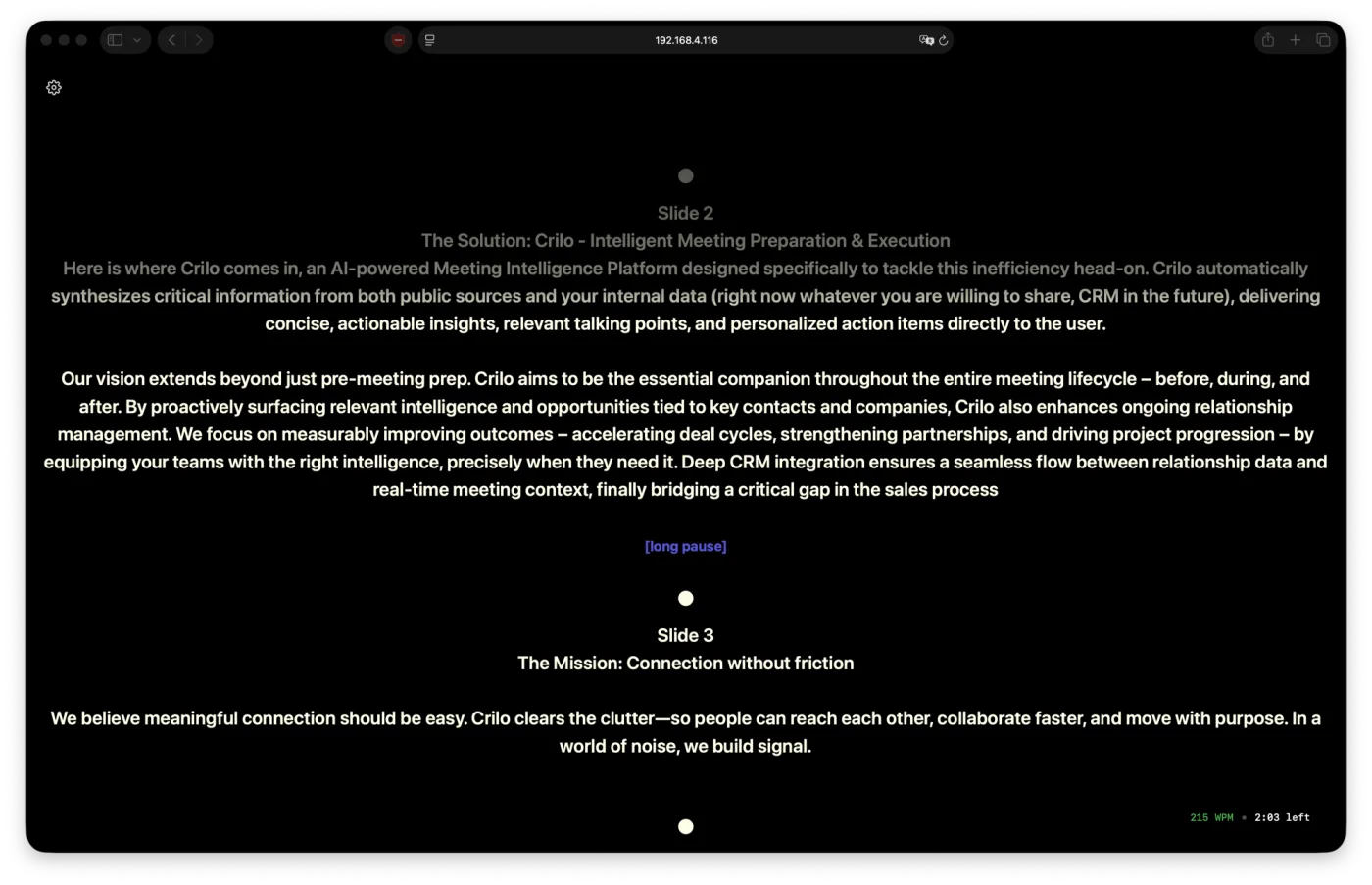
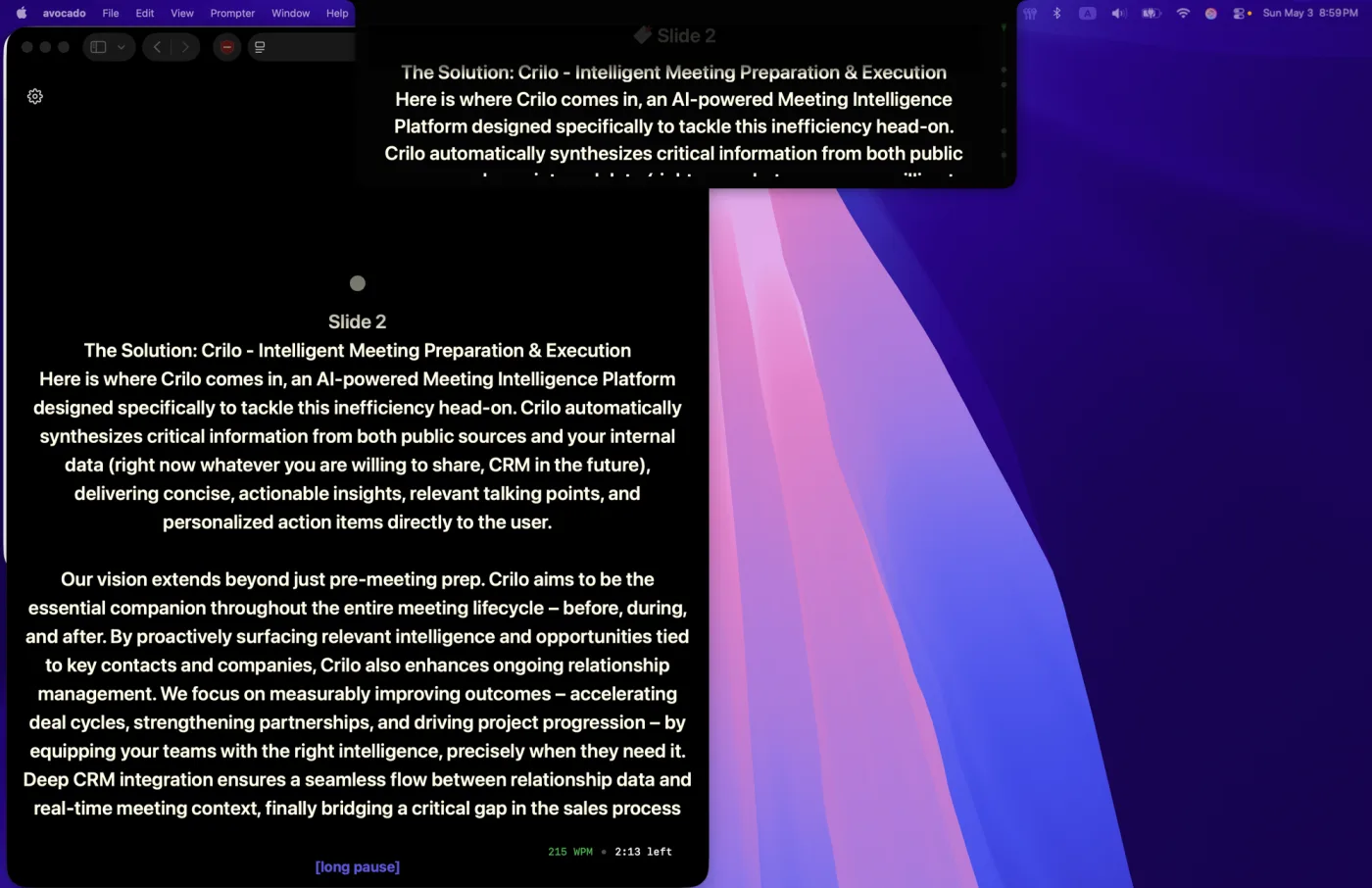
Everything you see on your Mac prompter is mirrored on the Viewer in real time: the scrolling text, the font size, the color scheme, the alignment, and the Smart Cue markers. Pause on the Mac and the Viewer pauses. Jump to a Script Marker and the Viewer jumps. The two displays are always in sync.
Where to Put the Phone
The placement is what makes this useful. A phone mounted on a tripod arm directly below your camera lens gives you teleprompter text at almost exactly the angle of the lens. Your eyes read down slightly from center — imperceptible on camera — rather than drifting sideways to a monitor that's two feet to the right. That small geometry fix is the difference between looking "kind of at the camera" and looking directly into it.
Common placements that work well:
- Phone on a small tripod below the webcam — the most flexible option for desk setups and laptop recording. Mount the phone portrait or landscape depending on your script density.
- Tablet on a music stand or lectern — ideal for standing presentations, lectures, or event talks where you're not sitting at a desk.
- iPad in a beam-splitter hardware rig — the Viewer works perfectly as the display source for a physical teleprompter rig. No dedicated prompter monitor required, and the iPad screen is bright enough for most lighting conditions.
- Second laptop on the other side of a dual-monitor setup — for content creators who record on one screen while the prompter lives on a separate machine pointed at the lens.
Smart Cues on Every Screen
One detail worth noting: Smart Cue markers — the [pause], [breathe], and [smile] cues that Avocado injects automatically using on-device AI — are visible on the Viewer too. So if you've had your script analyzed and have pacing markers throughout, you'll see them on your phone exactly as they appear on your Mac. You don't lose any of the coaching layer when you switch to a second screen.
Completely Local, Completely Private
The Viewer connection runs entirely over your local Wi-Fi. Nothing passes through the internet. Your script text is never transmitted to the Viewer device — only scroll position and playback state travel over the connection. The session token is cryptographically generated and changes each time Director Mode is toggled, so an old Viewer link can never reconnect to a new session.
If your script contains anything you wouldn't want on a server somewhere — an unreleased product announcement, confidential talking points, an earnings call script — this is relevant. The content never leaves your local network.
The Setup in Practice
The full workflow takes about a minute the first time:
- Open Avocado Pro on your Mac and load your script.
- Enable Director Mode from the settings panel. Avocado generates a session URL.
- Open the Viewer URL in any browser on your phone or tablet.
- Position the device at or near your camera lens.
- Hit play. Both screens scroll together.
After the first time, the muscle memory is fast. The phone goes on the mount, you open the URL (it auto-saves in your browser history), and you're recording.
One Screen for Operator, One for Reading
The Viewer and the Director control panel are separate URLs. If you're working with a producer or co-host who's running the speed and cue navigation, they get the control interface. You get the clean reading view. Both connect to the same session. The operator sees progress, speed controls, and cue navigation. You see text, nothing else.
Or you run it solo: your phone shows the script at the lens while your Mac handles the recording. No operator needed.
Why This Changes the Setup Calculus
A hardware teleprompter monitor costs $300–$800 and requires a mount, a cable, and a dedicated display. A phone you already own, a $15 mini tripod, and a Wi-Fi connection gets you to the same place — text at the lens, reading without drifting — in a fraction of the footprint and cost. The Teleprompter Viewer exists because the best second screen for most people is already sitting on their desk.