The Part Nobody Explains About Hardware Teleprompters
Beam-splitter teleprompter rigs work by reflecting text off a half-silvered mirror mounted at 45 degrees in front of the camera lens. The talent reads the reflection while the camera shoots through the glass and sees only them. It's elegant engineering — but it has one hard constraint: because the image is reflected, the software driving it must flip the text horizontally before it reaches the glass. Otherwise every word reads backwards.
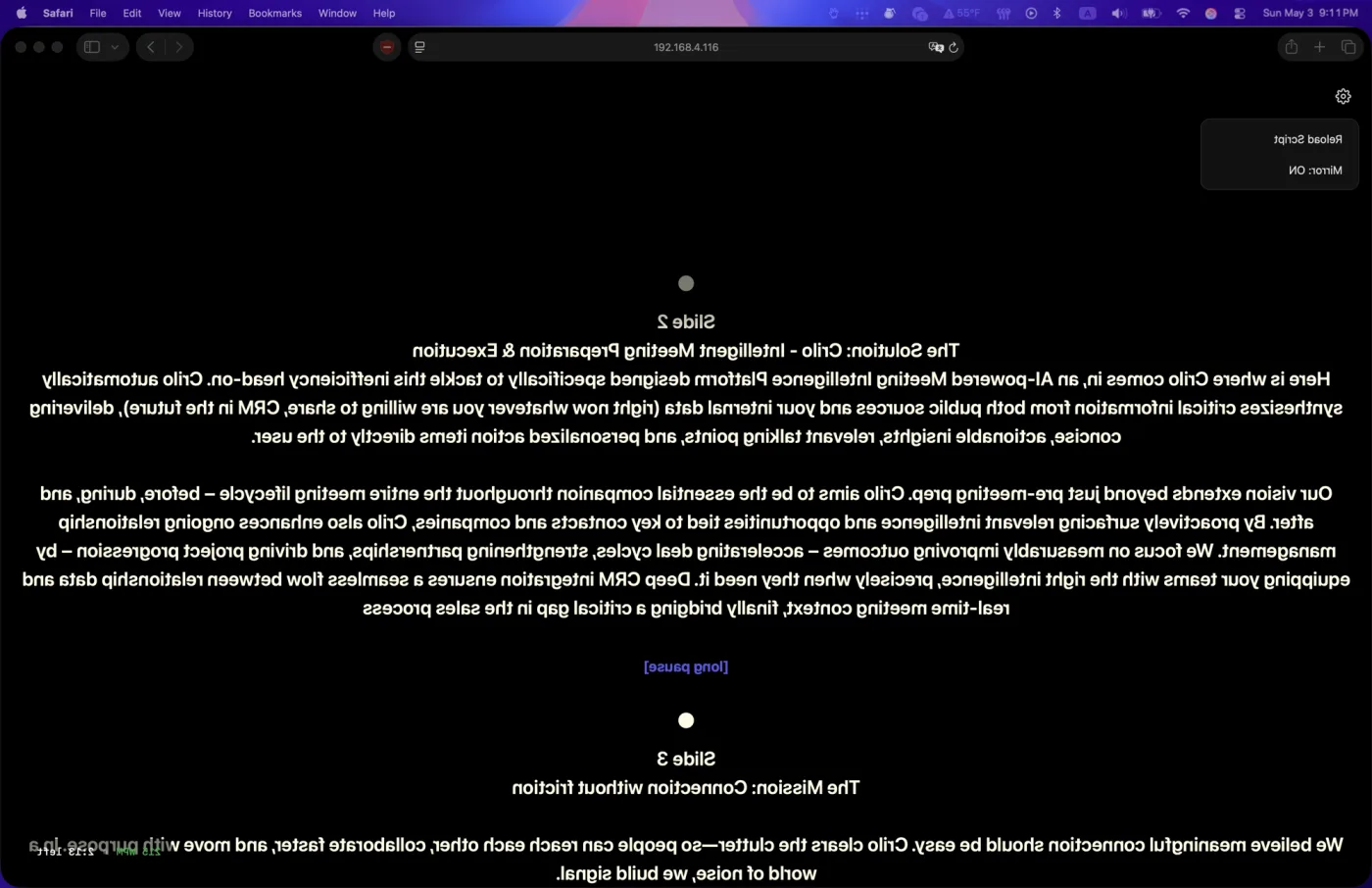
This sounds trivial. In practice, it eliminates most Mac teleprompter software immediately. The ones that do support it usually rely on browser CSS transforms or system-level display flipping — both of which introduce rendering lag, break font hinting, or require a separate utility running alongside your session. Avocado handles it with a single native toggle: Settings → Prompter → Mirror Text. The prompter window flips. The stats pill doesn't. Voice-activated scrolling still works. Nothing else changes.
The Monitor Problem (And How to Skip It)
The standard hardware rig setup requires a dedicated display as the source: a prompter monitor connected via HDMI or USB-C, positioned below the beam-splitter glass pointing upward. These monitors exist specifically for this purpose and run $400–$1,500 depending on brightness and size. For a professional studio that uses the rig daily, that's reasonable. For everyone else — the filmmaker running a one-person production, the YouTuber who picked up a budget glass kit, the executive who needs a rig for a quarterly address — it's a significant purchase for something that sits in a case most of the year.
Here's the part that's easy to miss: the Teleprompter Viewer changes the calculus entirely.
When you enable Director Mode in Avocado Pro, it generates a Viewer URL alongside the director control URL. Any device on your Wi-Fi can open that URL in a browser and display a live, synced teleprompter — the same text, the same scroll position, the same Smart Cue markers. Including a phone or tablet you mount directly in the rig.
An iPad with a decent screen — the base model is $329, and you likely already own one — mounted below your beam-splitter glass with the Viewer open in Safari replaces a dedicated prompter monitor entirely. No cable between Mac and rig. No resolution mismatch. No display settings to configure. Just the Viewer URL, the Wi-Fi, and a mount.
Does the Mirror Apply on the Viewer?
Yes. When Mirror Text is enabled on the Mac, the Viewer inherits the mirrored rendering. Whatever the Mac is outputting — flipped horizontally for the glass — is what the Viewer displays. You don't need to configure the Viewer device separately. Enable Mirror Text once on the Mac, point the rig at the iPad, and the glass reads correctly.
Adding a Director to the Rig
The full professional setup has three devices: the talent on camera, someone off-camera operating the prompter, and the prompter display itself. Director Mode covers all three from a single session.
Your Mac runs Avocado with Mirror Text on. The iPad in the rig opens the Viewer URL. The director — a producer, camera operator, or colleague — opens the control URL on their phone. From that phone they can play, pause, adjust scroll speed, jump between Script Markers, and scrub to any position in the script. The talent sees smooth, correctly-mirrored text through the glass. The director watches the talent's delivery and adjusts in real time, the same way a broadcast prompter operator would.
Nothing is going through the internet. The session runs entirely on your local Wi-Fi. The script never leaves your Mac. The director's control signals travel to Avocado via WebSocket and are reflected instantly to the Viewer. Up to five devices can connect to the same session — useful if you have a camera operator and a producer both needing visibility.
What This Looks Like in Practice
A realistic single-camera setup for a scripted piece:
- Mac — running Avocado Pro with Mirror Text enabled and Director Mode active. You're not touching it once the session starts.
- iPad (or Android tablet) — mounted in the rig below the beam-splitter glass, Safari open to the Viewer URL. This is your display source.
- Director's phone — open to the control URL. Whoever is off-camera manages pace, pausing, and section jumps.
Total equipment beyond what you likely already own: a beam-splitter glass kit ($80–$400 depending on size and quality) and a tablet mount. Avocado Pro covers the software side — see current plans. The setup time, once you've done it once, is under two minutes.
Voice Scrolling as a Fallback
If you're running the rig solo — no director — voice-activated scrolling fills the gap. Avocado's on-device speech recognition listens to your delivery and advances the Viewer at your pace. The text pauses when you pause. If you stumble and restart a sentence, it waits. The mirrored display on the rig stays in sync with your speech without anyone touching a control.
This won't replace a skilled operator for high-stakes productions. But for solo content creators and smaller setups, it means you can run the full rig alone and still deliver naturally paced, prompter-assisted takes without a foot pedal, remote, or second person in the room.
The Rig Math
A traditional broadcast-grade hardware teleprompter setup — glass, mount, dedicated prompter monitor, operator software — runs $2,000 to $10,000+. A practical modern equivalent using Avocado: a $100–$400 beam-splitter kit and a tablet you already own. The tradeoffs are real — a professional rig monitor is brighter, has less reflection, and is purpose-built. But for the vast majority of use cases outside dedicated broadcast studios, the Avocado setup is indistinguishable in practice and available to anyone. See Pro plans.